A guide for how to use Ryde

Whether you're heading across town or across the country, getting there should be easy. Learn how to ride, rent, run a shop or drive with Ryde.

One account works in every Ryde app. Riders and shops use the Ryde app; drivers use Ryde Driver. The screens are from the test version, so names and numbers are made up.

Ryde app

Book a taxi

Ryde gets you a licensed taxi anywhere in Belize. You see the price before you book.
Before your first ride

  • Open Ryde. Tap Continue with Google, or Continue with email: we email you a 6-digit code.
  • Type your name and WhatsApp number once. Your driver uses it to reach you.

How to ride with Ryde

Open Ryde

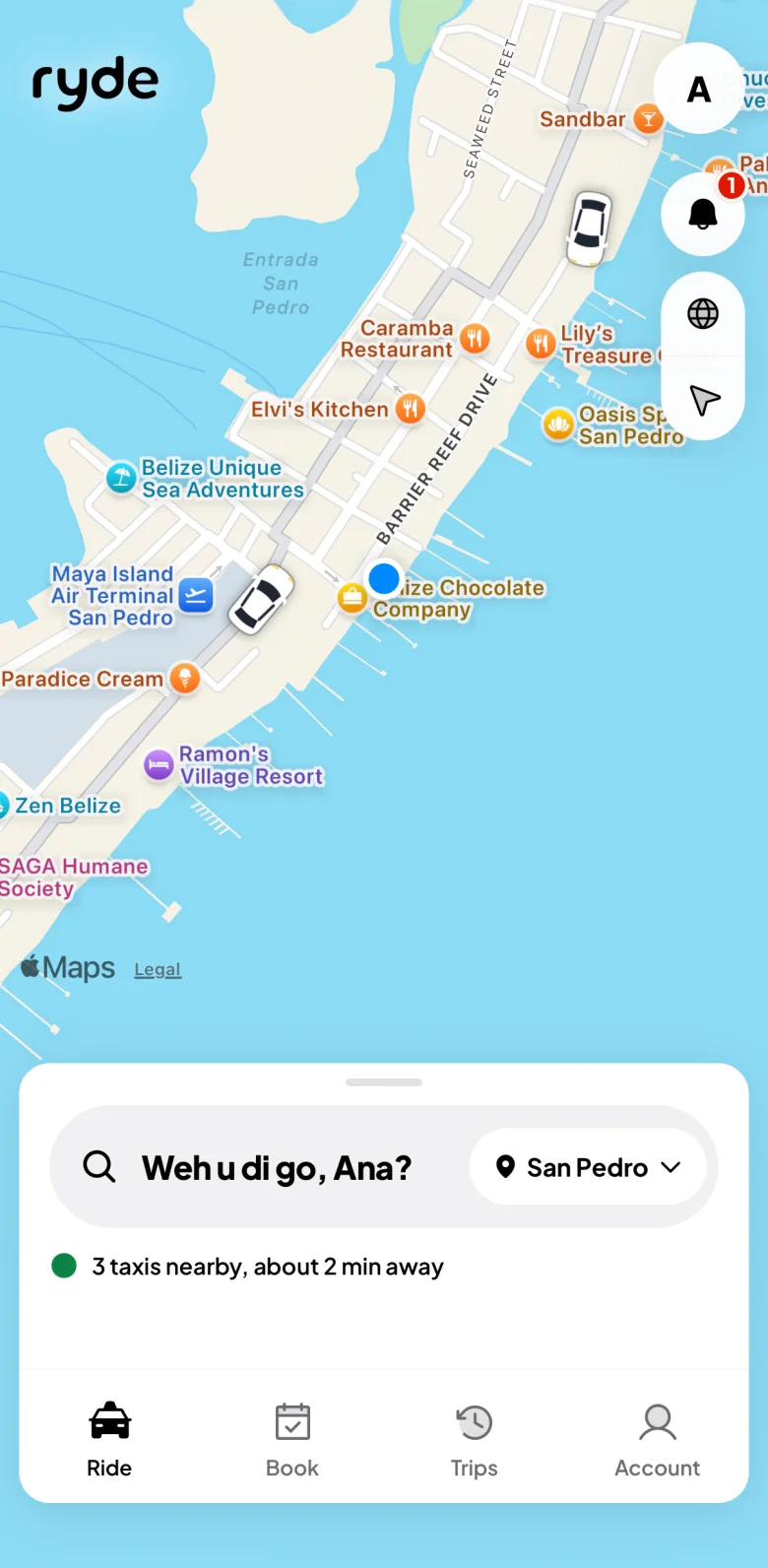
  • You land on Ride: a map with the taxis near you. Allow your location so the pickup is where you stand. Not now? Pick your town.
  • Tap the search bar at the bottom.
The Ride home screen in Ryde: a map with the taxis near you and the search bar

Say where you're going

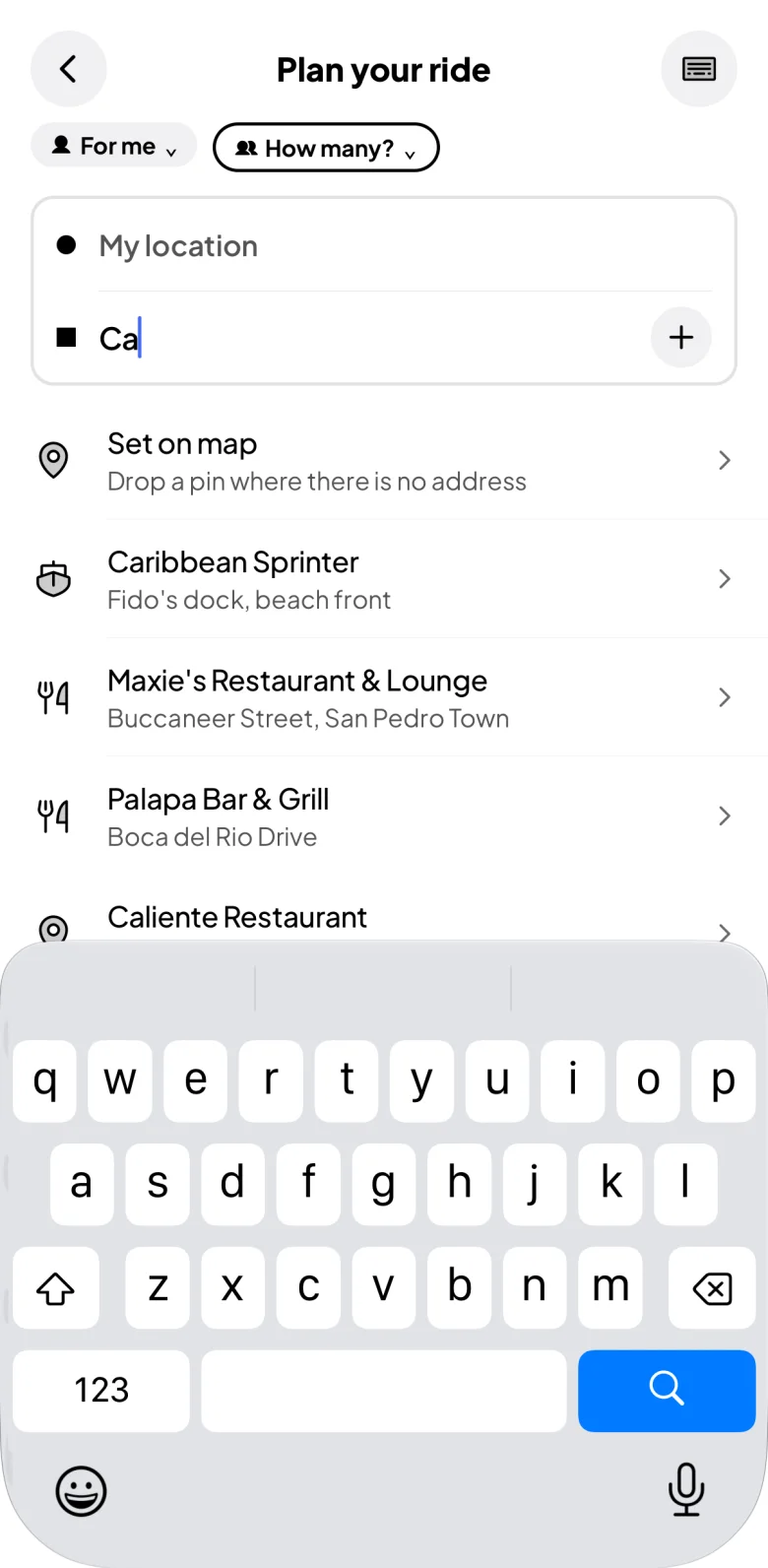
  • Type a place, or pick one your town already knows. Can't find an address? Tap Set on map and drop a pin.
  • A stop on the way? Tap +. Friends with you? Say how many are riding. Booking for your mom in another town? Tap For me, then Someone else.
Plan your ride: the pickup, the drop-off being typed and the places that match

Pick your ride and see the price

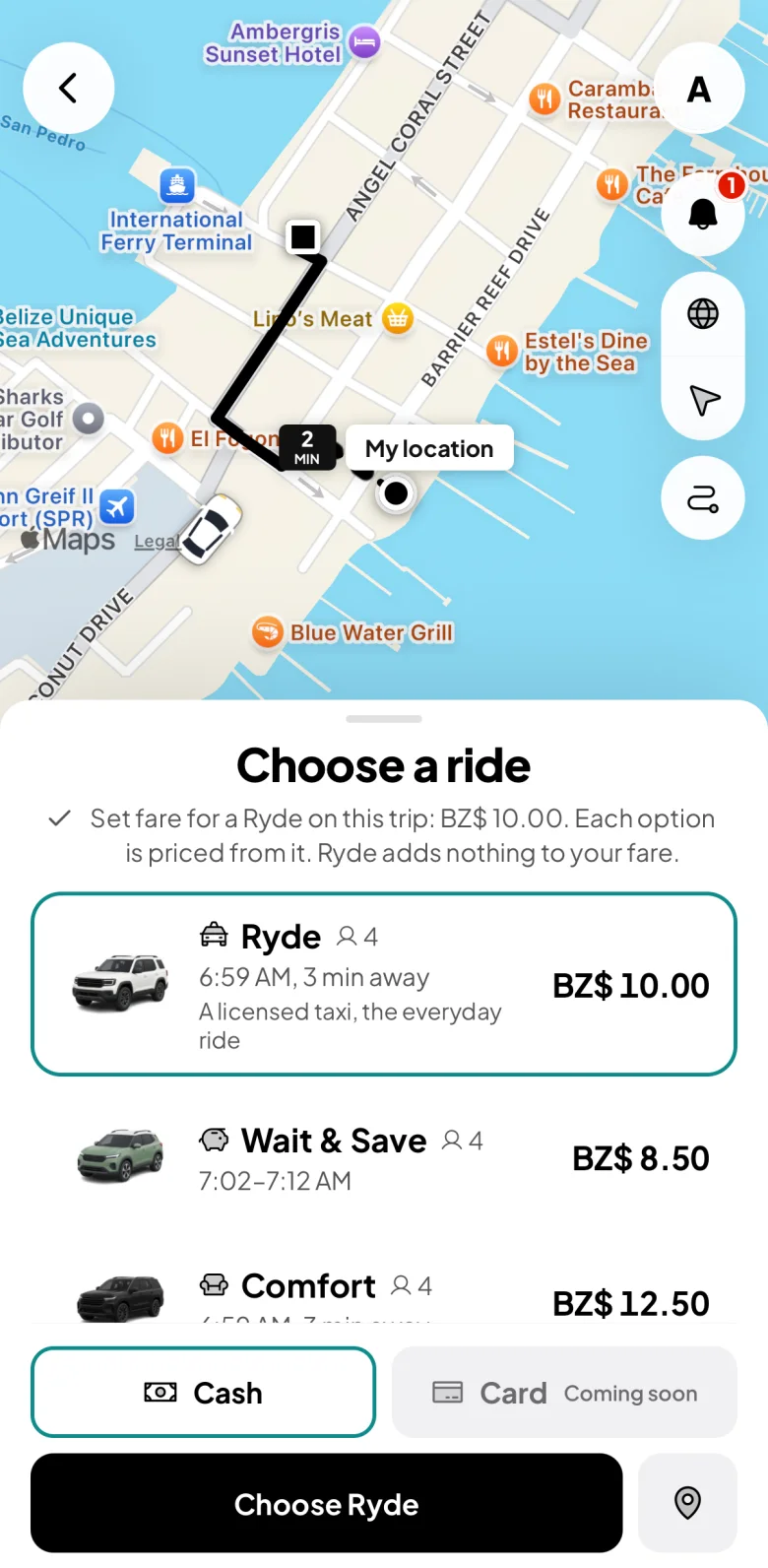
  • Every option shows its price before you book. A dotted line on the map is the short walk from where a taxi can stop to your pin. Ryde is the usual taxi, Wait & Save costs less for a short wait, and Comfort, Priority, Ryde XL (5 or 6 people) and Lux show when a taxi for them is near.
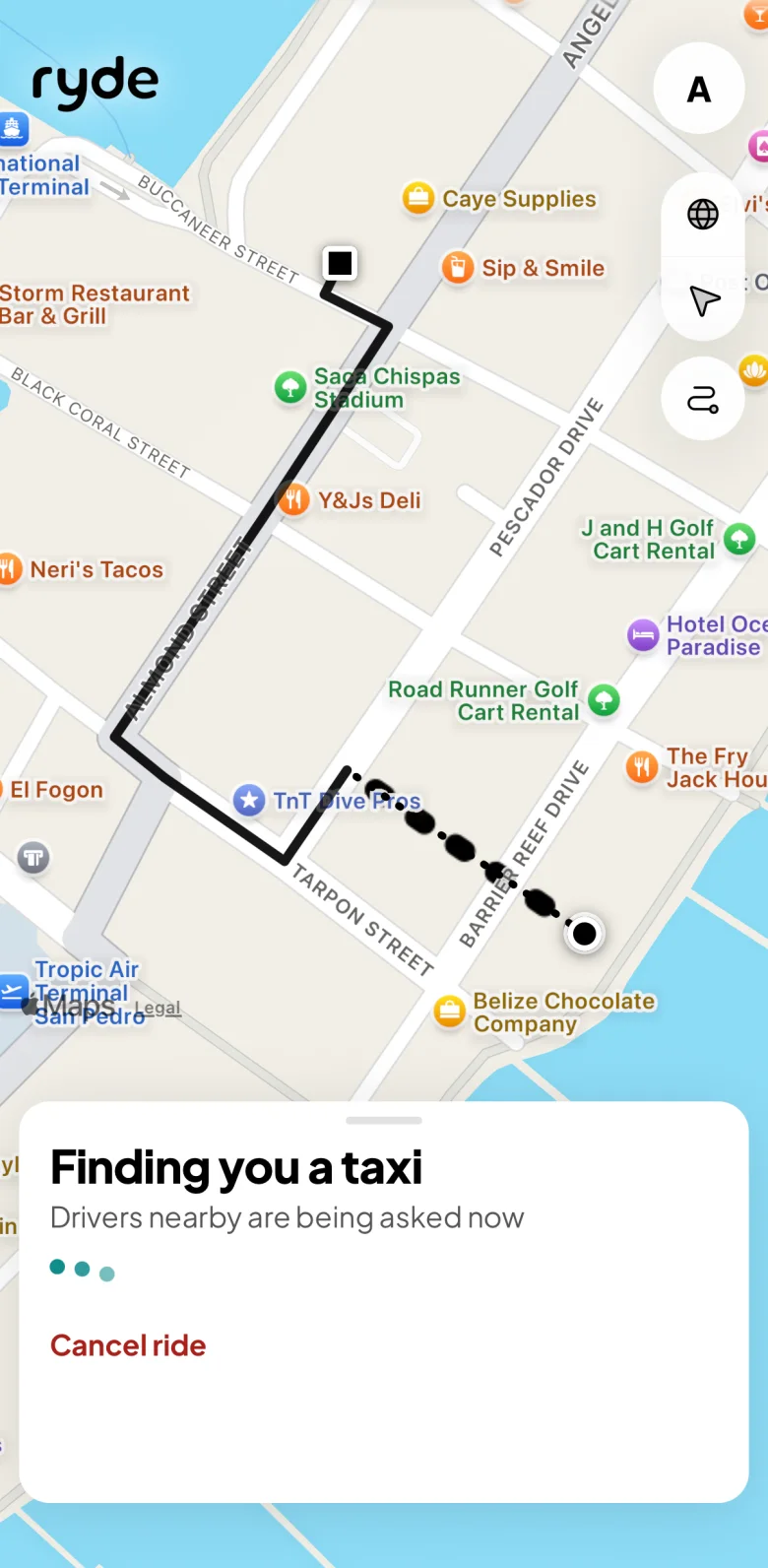
  • Tap Choose. Drivers near you are asked, nearest first. Changed your mind? Cancel ride is free until the trip starts.
Choose a ride: Ryde, Wait & Save and Comfort, each with its price and minutes awayFinding you a taxi: the drivers nearby are being asked

Meet your driver

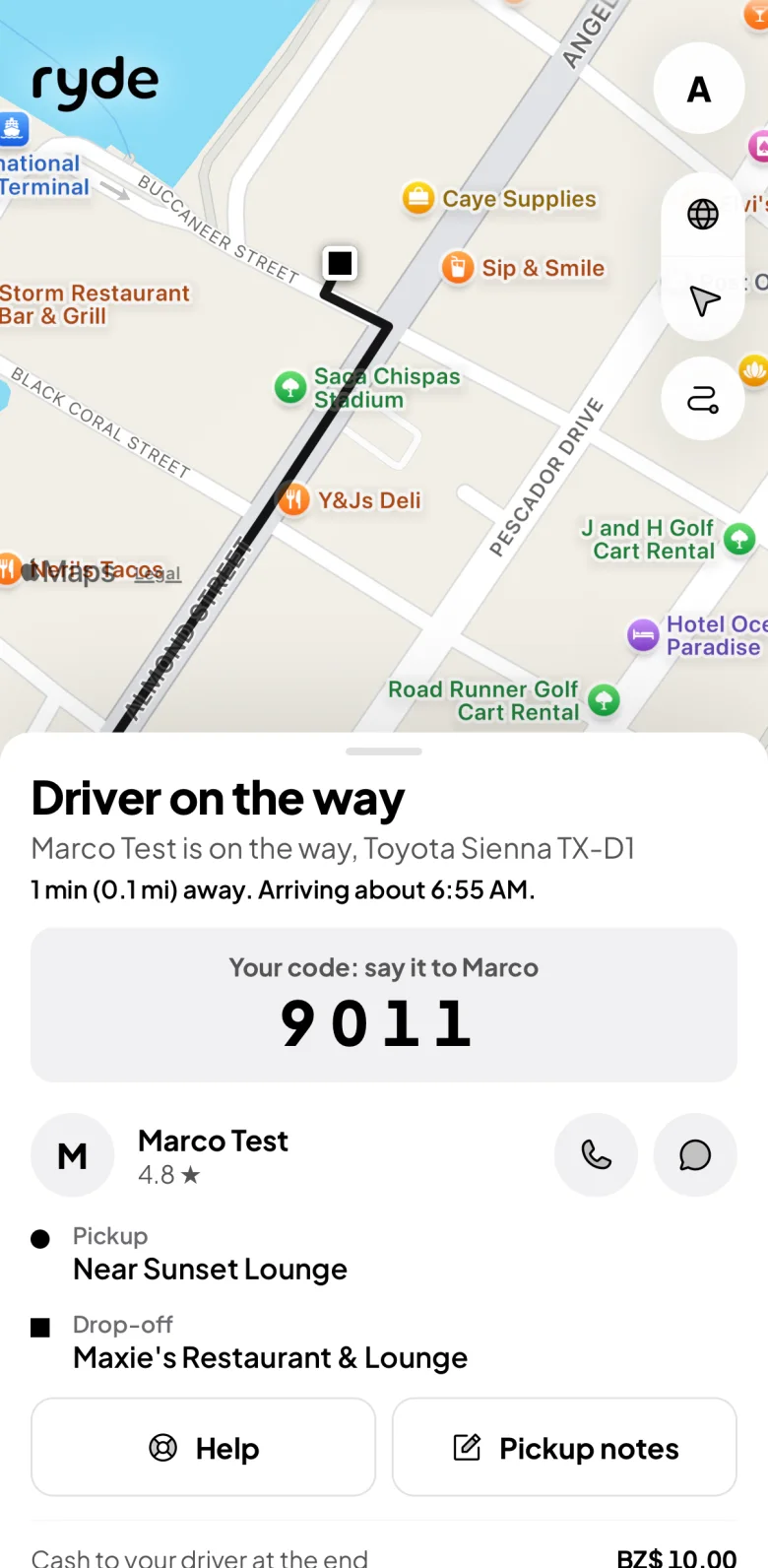
  • You see the driver, the taxi, the plate and how many minutes away. Call or Message them from the panel.
  • Your 4-digit code is on the screen. Say it to the driver before you get in. That's how you both know it's the right taxi.
Driver on the way: the taxi and plate, minutes away, your 4-digit code, and Call and Message

Check your ride

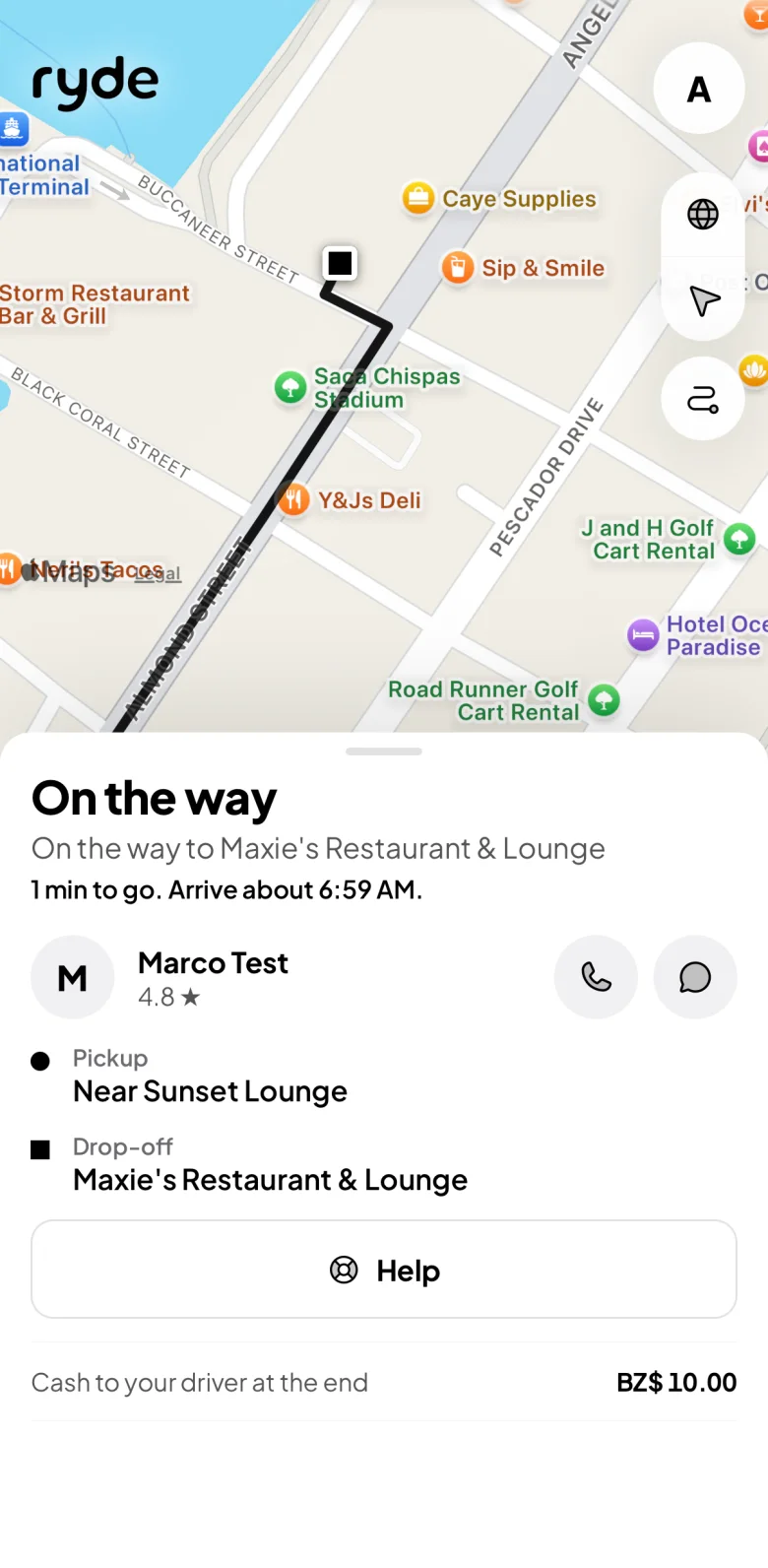
  • Watch the taxi on the map. The panel shows when you'll arrive.
  • Help is one tap away: call 911, message Ryde, or share your trip.
On the way: when you arrive, the driver, the pickup and drop-off, and Help

Pay and rate

  • Pay by card in the app, or in cash to the driver. Either way the whole fare is theirs.
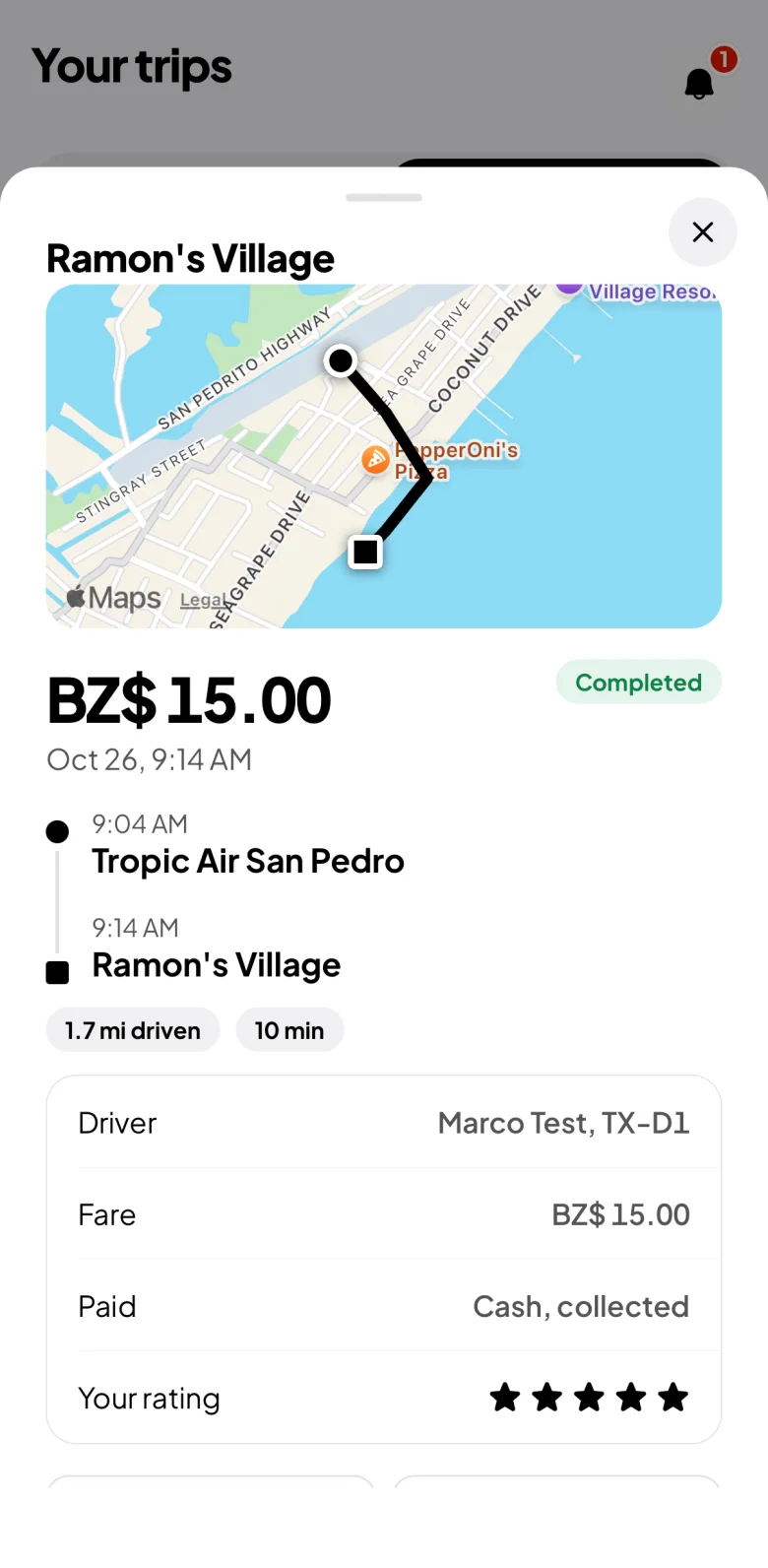
  • Rate your driver. Every trip and its Receipt stays in Trips, and Rebook books the same trip again.
A finished trip: the route, the fare, the driver and the Receipt and Rebook buttons

Smooth rides from start to finish

Know the price first

Every option shows what it costs before you book. The fare is the fare: no haggling at the curb.

Check the code

Your 4-digit code is how you and the driver know it's the right taxi. Say it before you get in.

Book for someone else

Send a taxi to your mom in another town. She doesn't need the app: you send her the driver's details.

Why it helps. No haggling at the curb, the fare is known before you go, and family in another town can get a ride you booked.

Ryde app

Rent a cart, car or ATV

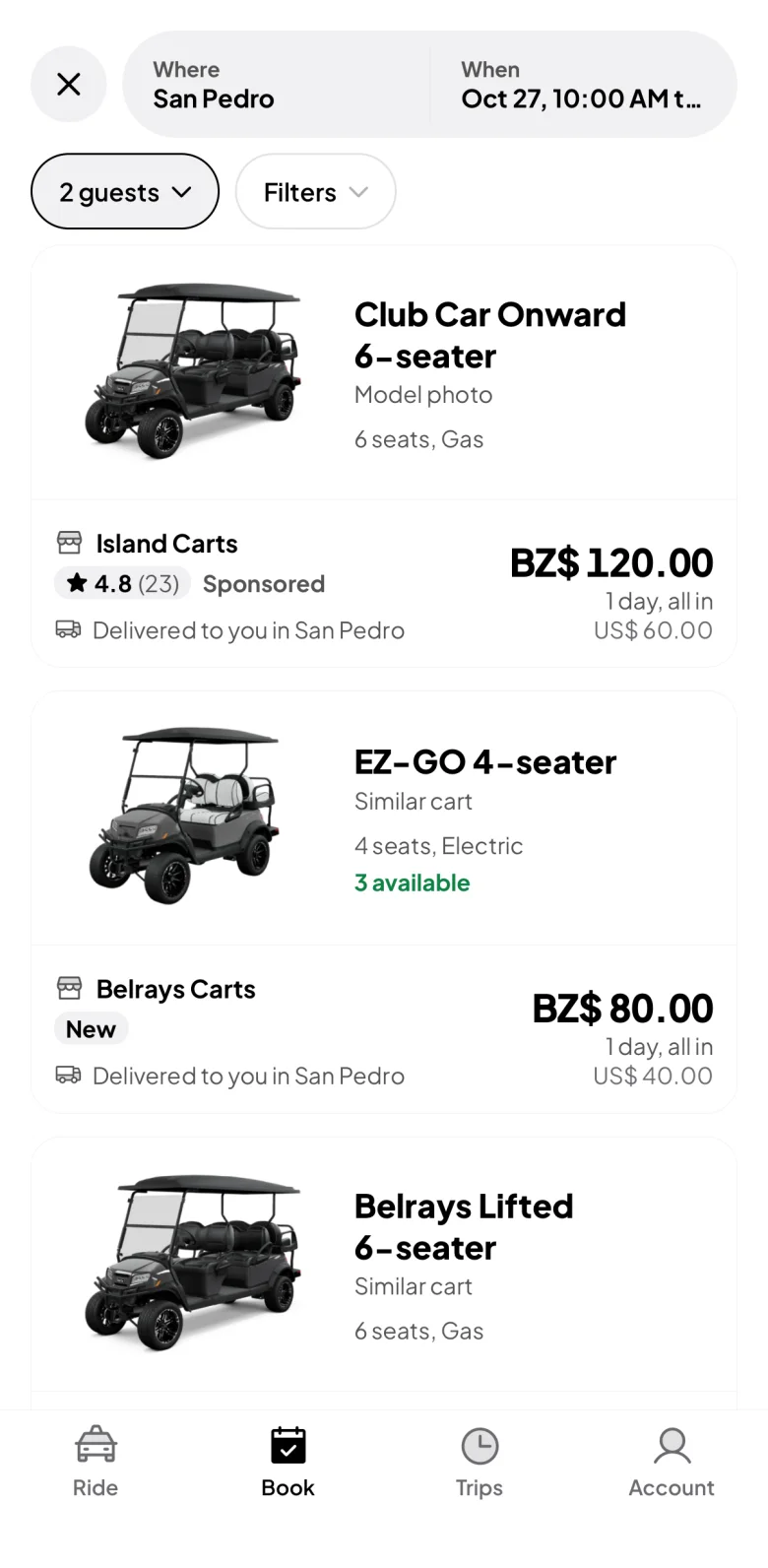
Every vehicle free for your dates, side by side, with its total for those dates. All in.
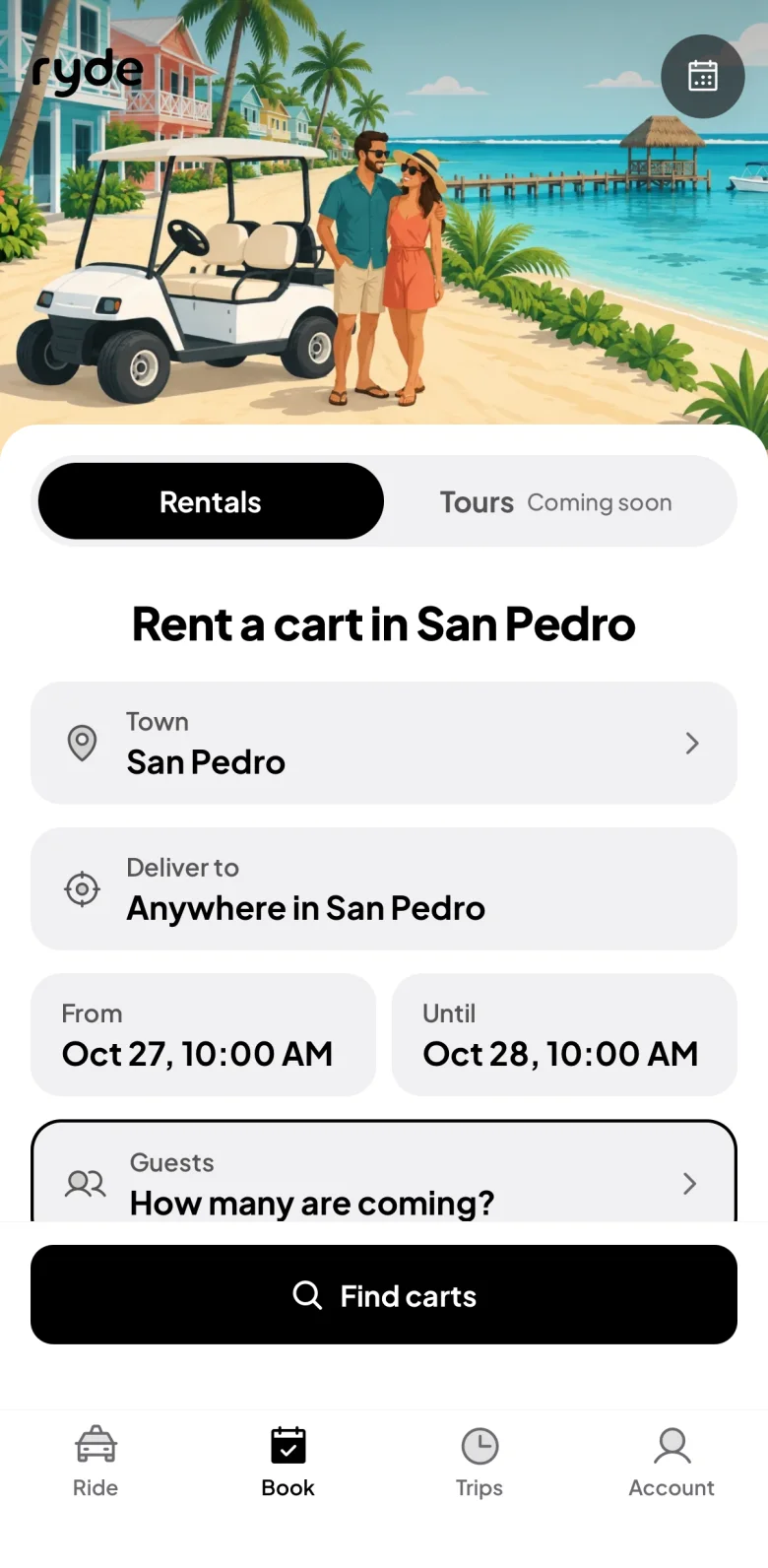
How to rent with Ryde

Compare what's free

  • Each vehicle shows its total for your dates, all in, with the price a day under it.
  • The same vehicle at more than one shop is folded into one card. Taken for your dates? It sits at the bottom, with when it is next free.
Results: each vehicle with its total for your dates, the shop and where it is delivered

Open one and send your request

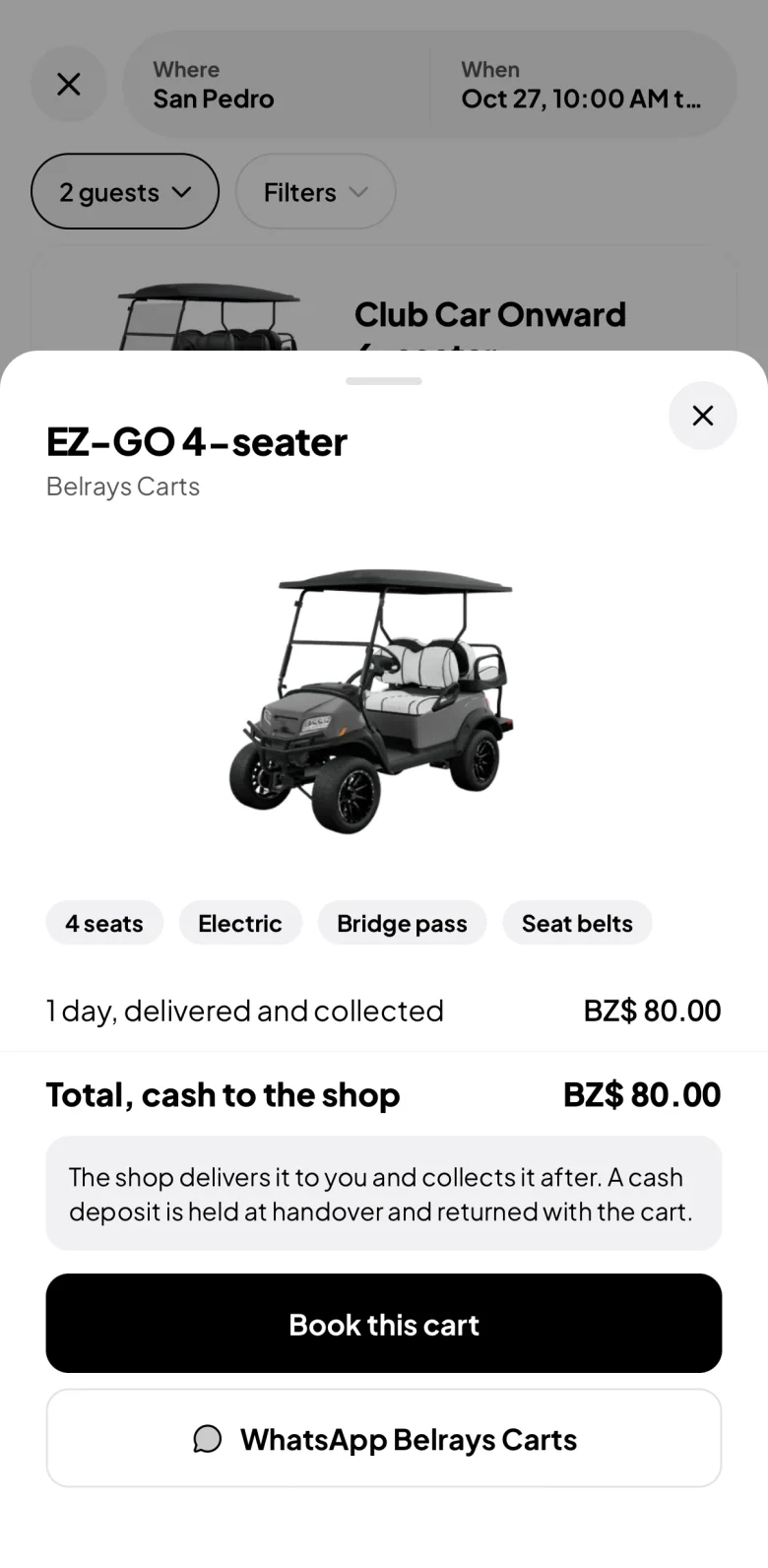
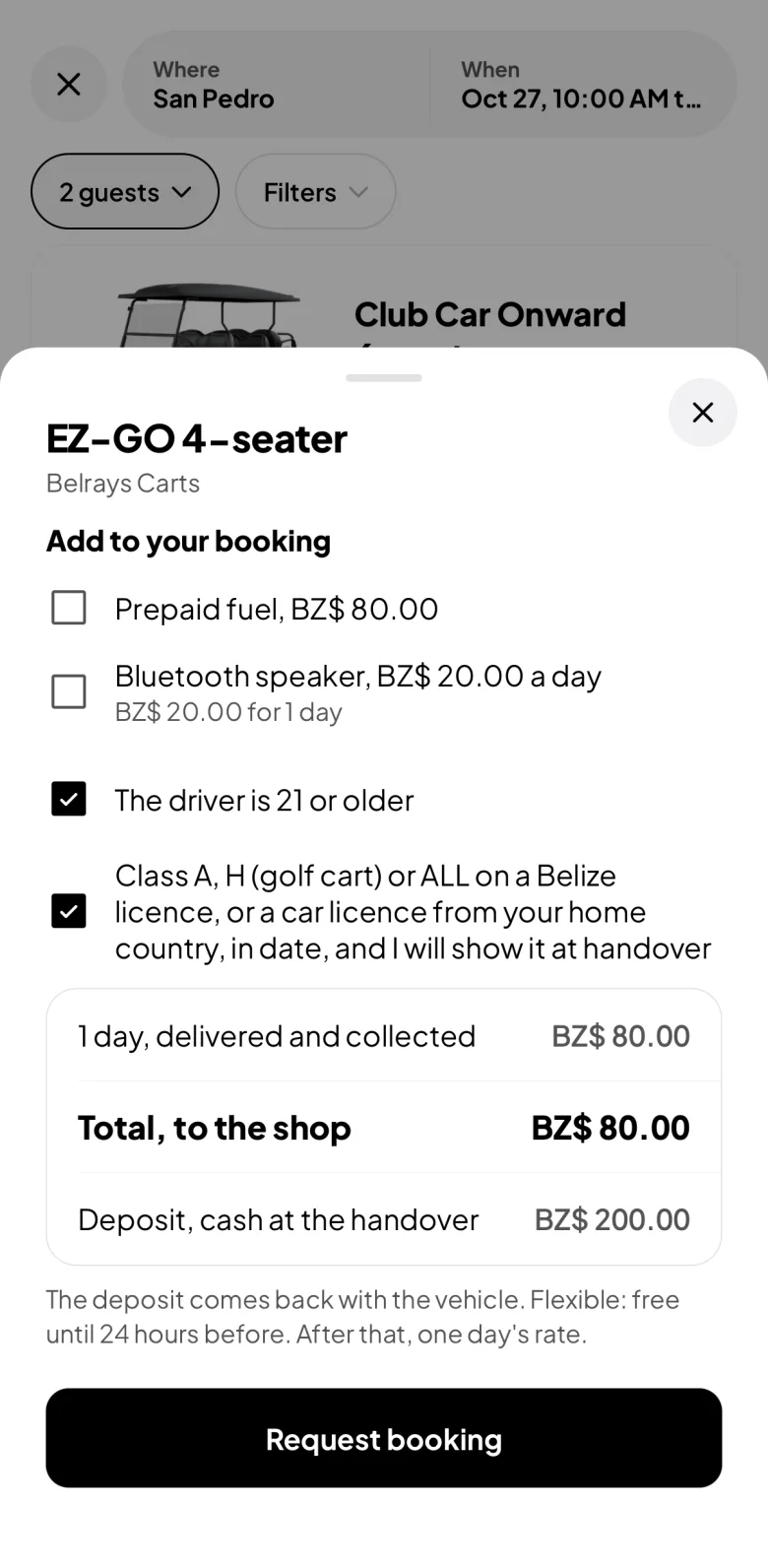
  • See what's included (fuel and damage are not), change the dates or the delivery spot, and add any extras the shop offers.
  • Tick that you hold the right licence, then tap Request booking. Instant book vehicles are booked at once. The deposit is cash at hand-over, and you get it back when the vehicle returns as it went out.
A vehicle's page: its picture, what is included, the total and Book this cartThe booking: extras, the age and licence ticks, the total and deposit, and Request booking

The shop answers

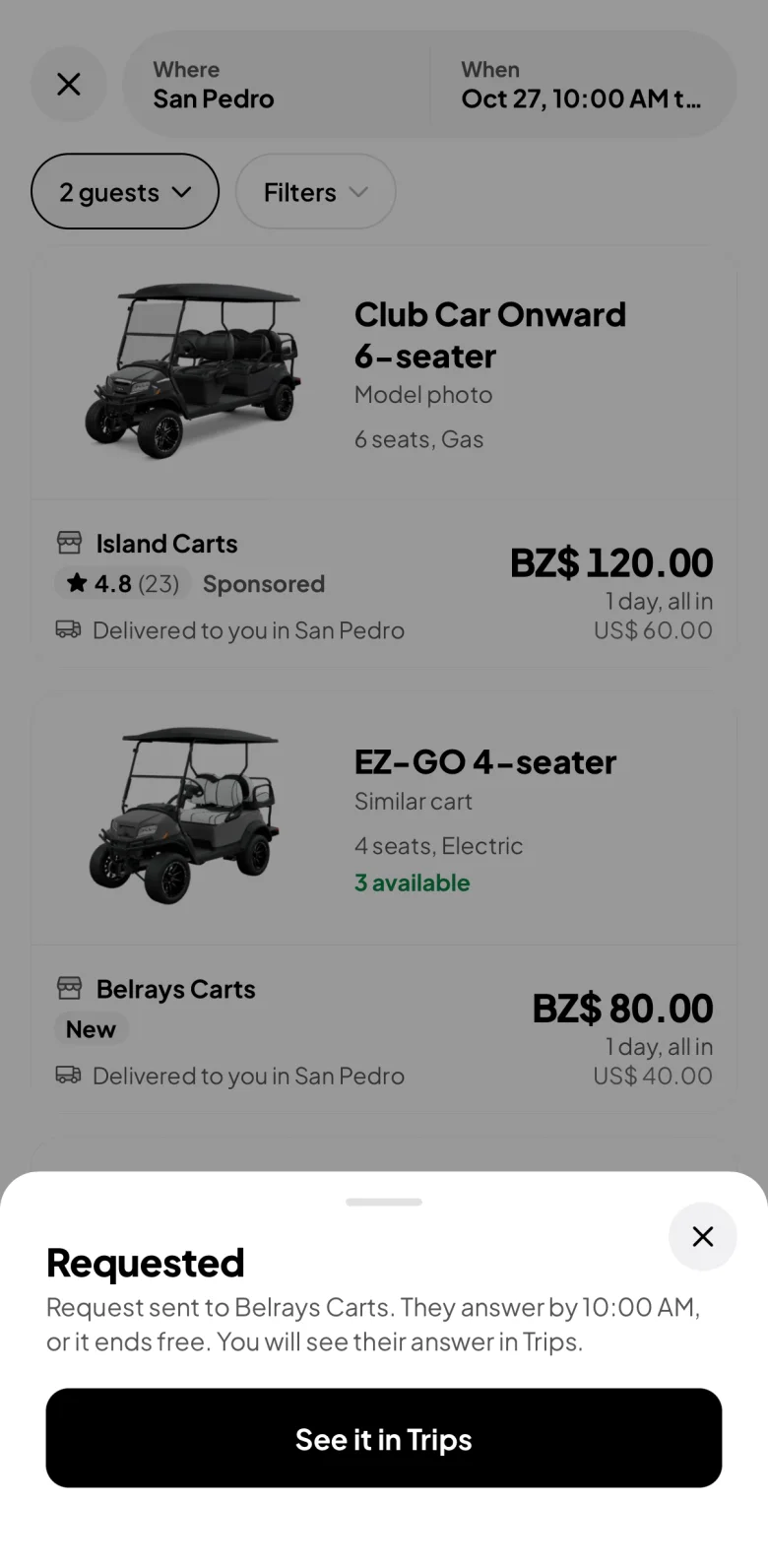
  • The shop answers in the app by the time it tells you. A request nobody answers ends by itself, free.
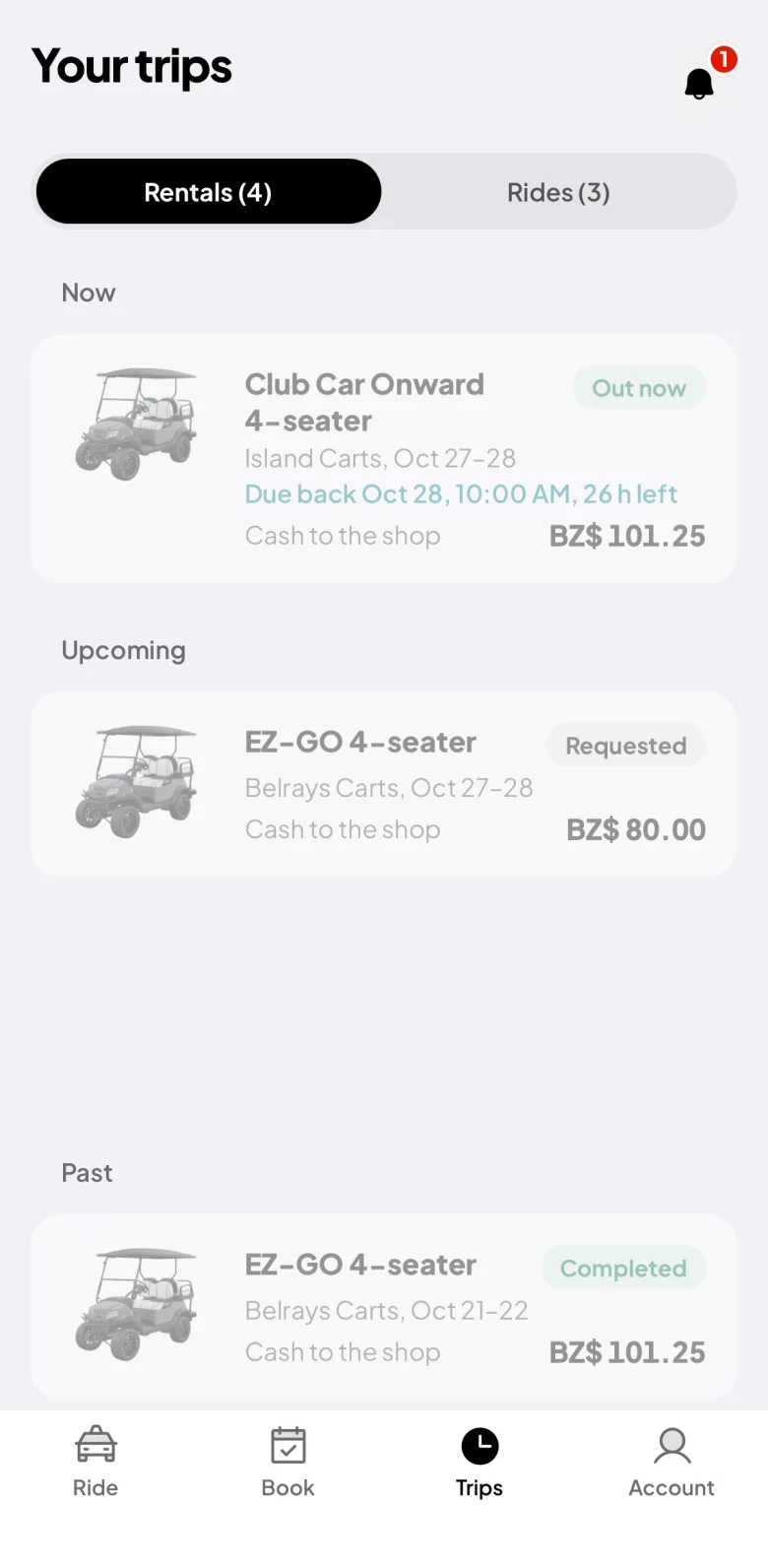
  • Everything lives in Trips. Declined? Tap Find another cart for these dates.
Request sent: the shop will answer by a set timeTrips: your rentals grouped as Now, Upcoming and Past, the new request among them

Pick it up, keep it, bring it back

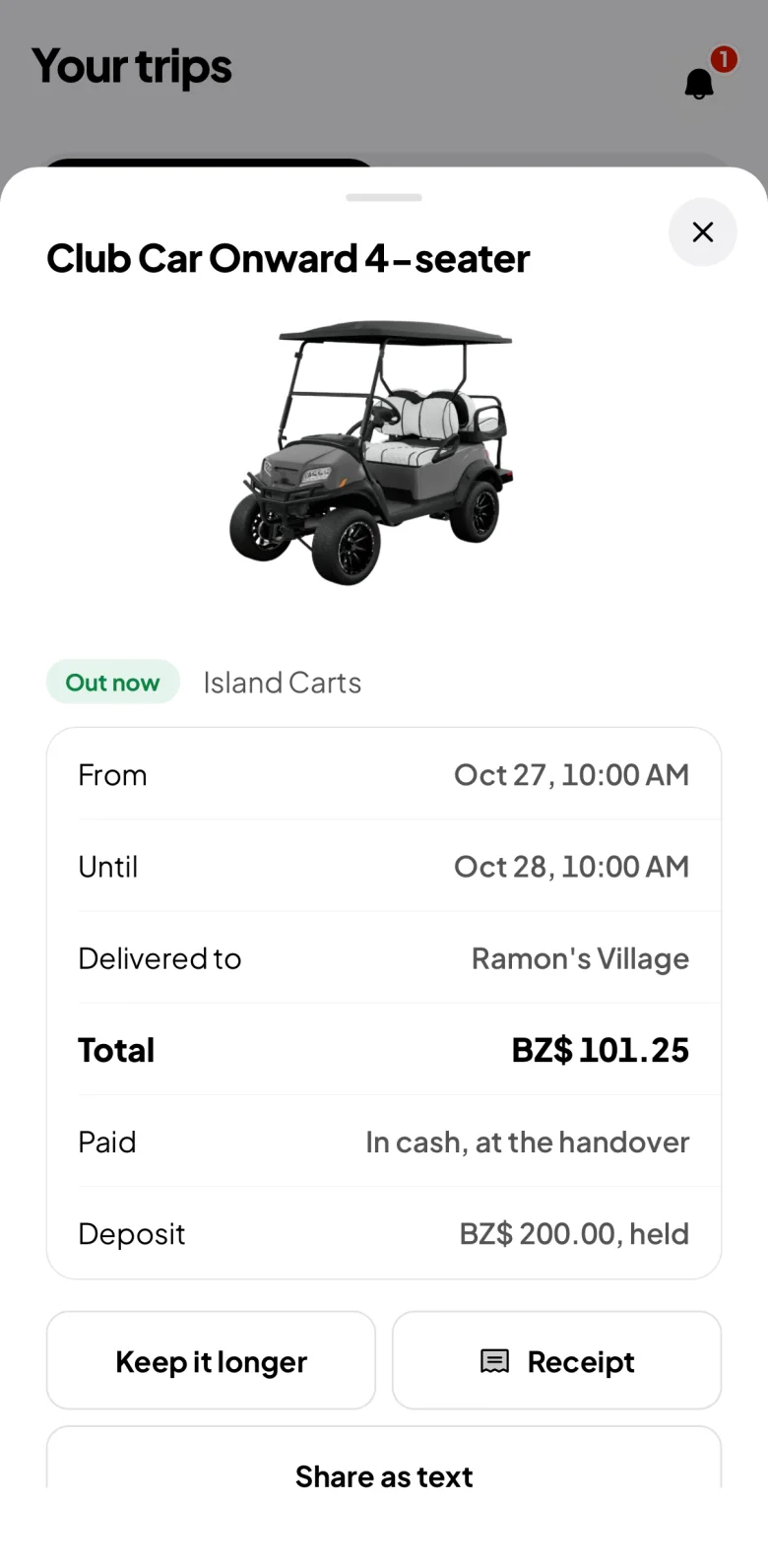
  • Pay the shop at hand-over. Need it longer? Tap Keep it longer and the shop says yes or no.
  • Bring it back on time. The shop checks fuel and damage and settles the deposit with you, line by line.
A rental that is out: the dates, what you paid, the deposit, Keep it longer

If something goes wrong

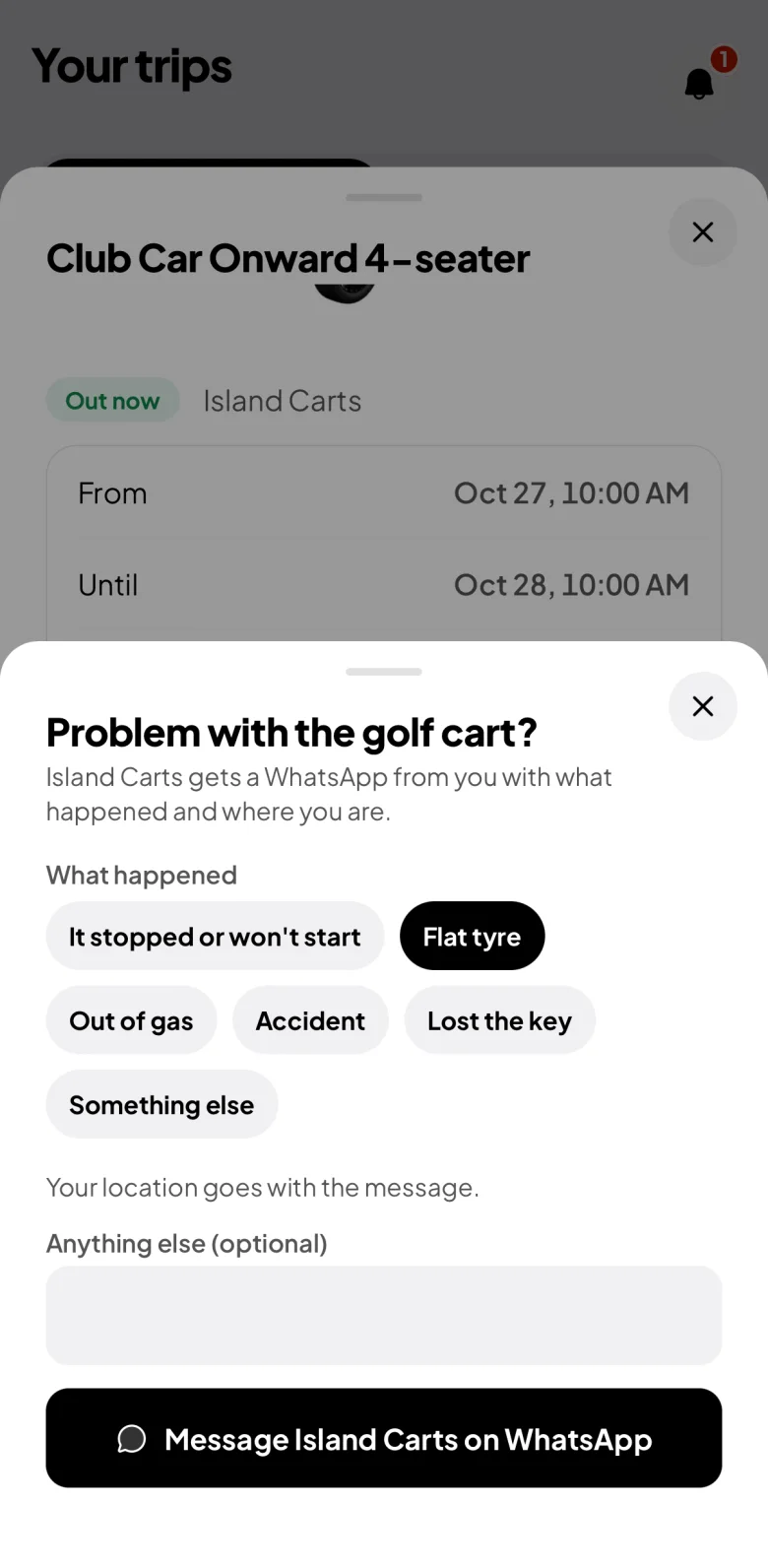
  • Stopped, flat tyre, out of gas, a lost key? Tap Problem with the golf cart? (or car, or ATV) and pick what happened. Ryde writes the WhatsApp to the shop for you, with your spot on the map.
  • An accident? Call 911 first.
Problem with the golf cart: pick what happened, and Message the shop on WhatsApp

Why it helps. No calling around for a free cart, no surprise total, and the deposit is recorded on both sides.

Ryde app, shop side

Rent out your vehicles

Ryde runs your rental shop's whole day: who's coming, which cart goes out, what's late back and what you're owed. Set up once below, then run each day.

Before you start

  • In Ryde, open Account and tap Work with Ryde, or go to ryde.bz/rent-out. Photograph your trade licence and business registration: Ryde reads them for you.
  • A person at Ryde checks your papers and approves you. Then tap Account → Switch to your shop.
  • Then follow Run 30, 60 or more vehicles below to post your fleet. It works for 3 vehicles too.

Run 30, 60 or more vehicles

Follow it from your home screen to your first booking. You don't set up one cart at a time: bring your list in once, give every cart its number and plate in one box, and send every paper from one pile of photos.

Start on your home screen

  • Open Ryde. You land on Today, your shop's home screen.
  • A new shop sees Renters can't book you yet, and what is left to do.
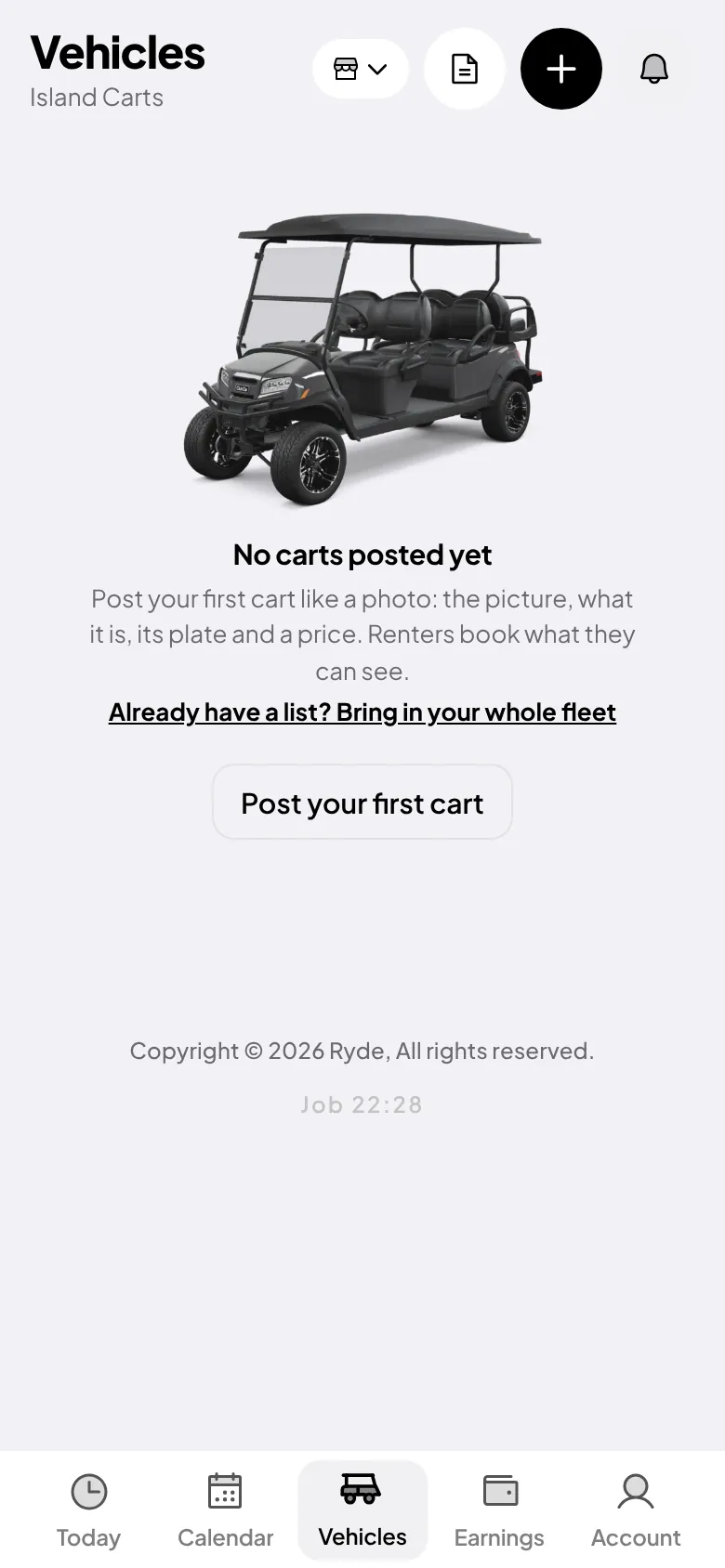
  • Tap Vehicles at the bottom. That's where your fleet lives.

Tip. Today is also where booking requests will arrive once you're live.
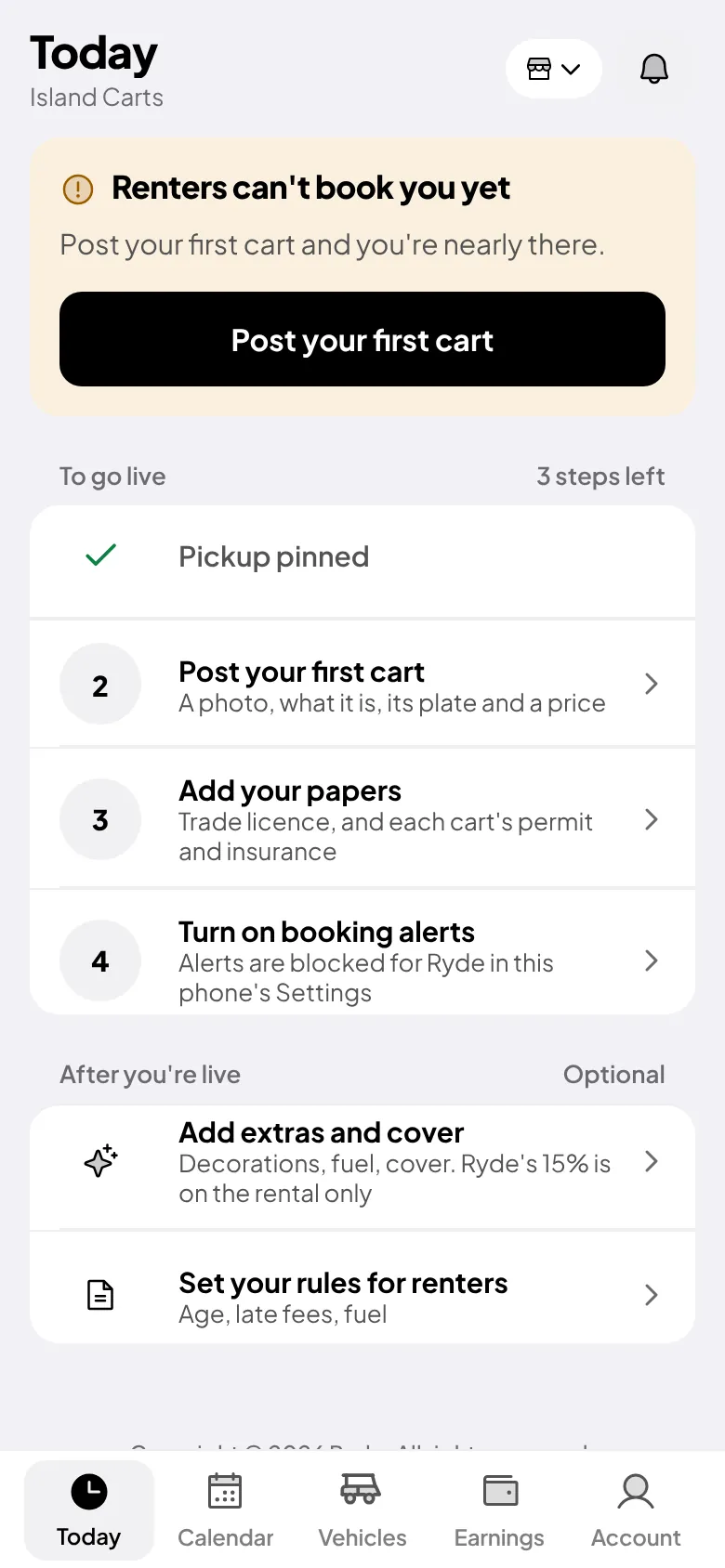
Today, a new shop's home screen: Renters can't book you yet, and the steps left to doVehicles, with nothing posted yet and the page icon at the top

Add your fleet

  • On Vehicles, tap Add my fleet. Tap each vehicle you have and it parks in your lot.
  • Have a list? Tap Snap a list and pick BZ$ or US$. Ryde never guesses a price.
  • Give Ryde your list any way you already have it: a spreadsheet or PDF, screenshots of a Facebook, Instagram or WhatsApp post, or the words pasted in.
  • Check each line, set your prices, tick the promise and slide to open.

Tip. Only your own list. Ryde puts its own picture on every vehicle, so nothing is copied from another website, and a price it can't read is left for you to type.
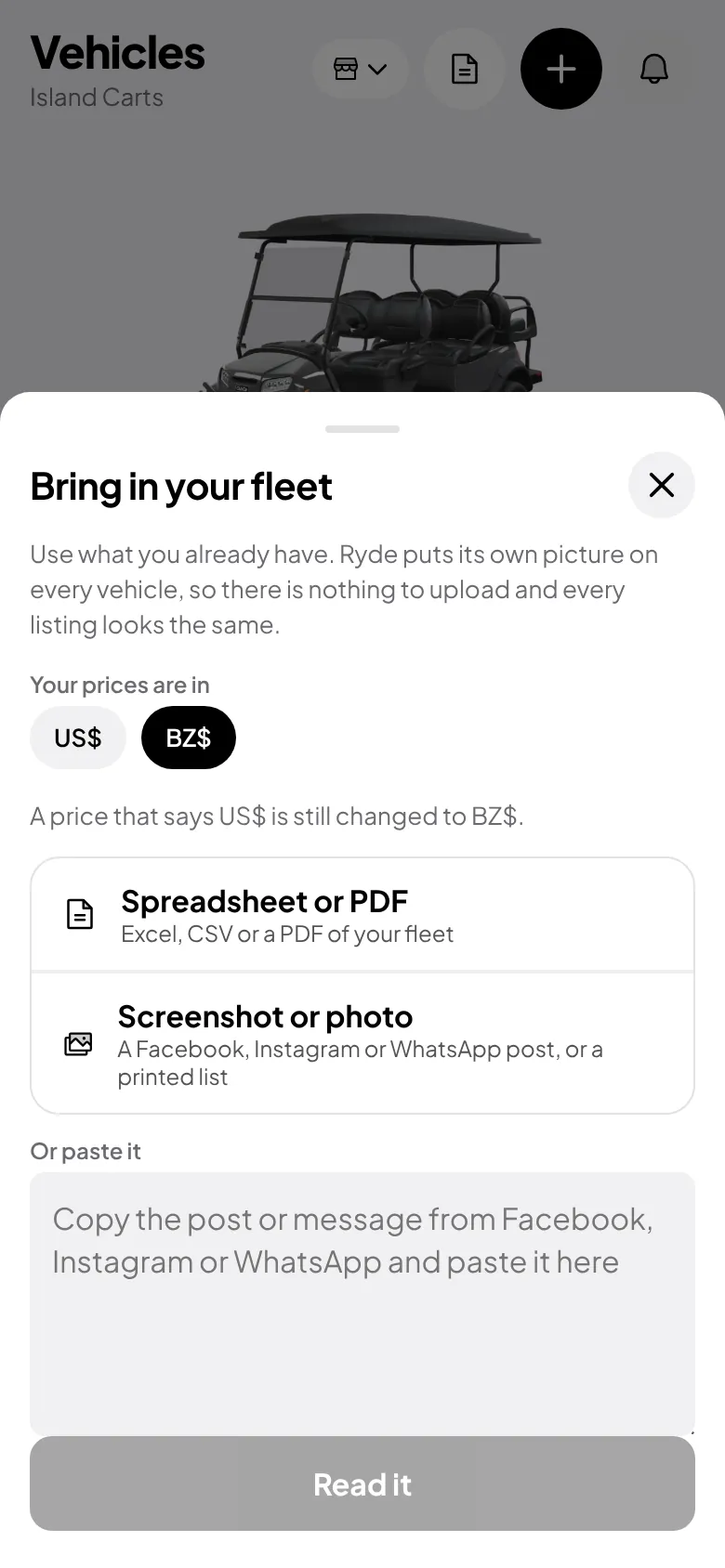
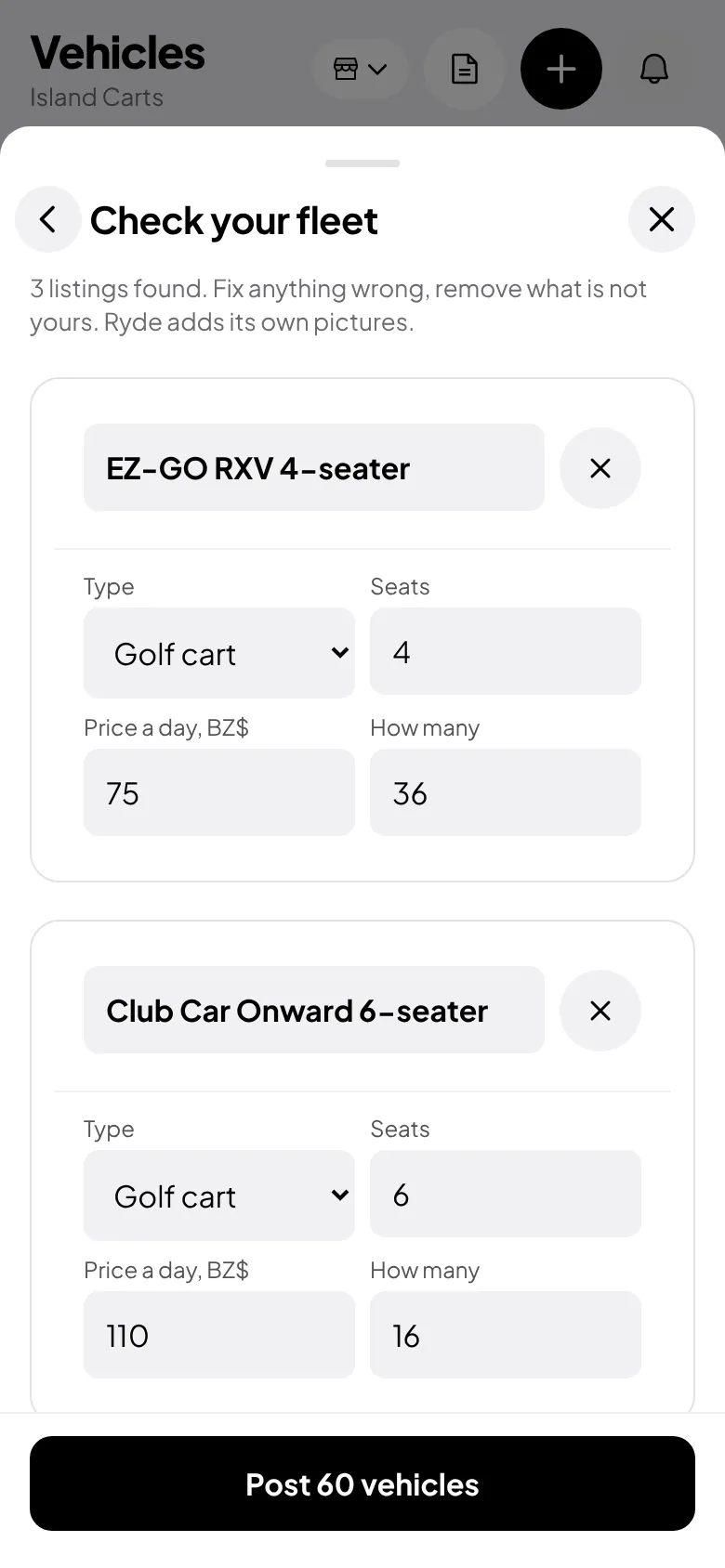
Add my fleet: tap your vehicles into your lot, or snap your price listCheck your fleet: each line with its seats, price a day and how many

See what's ready

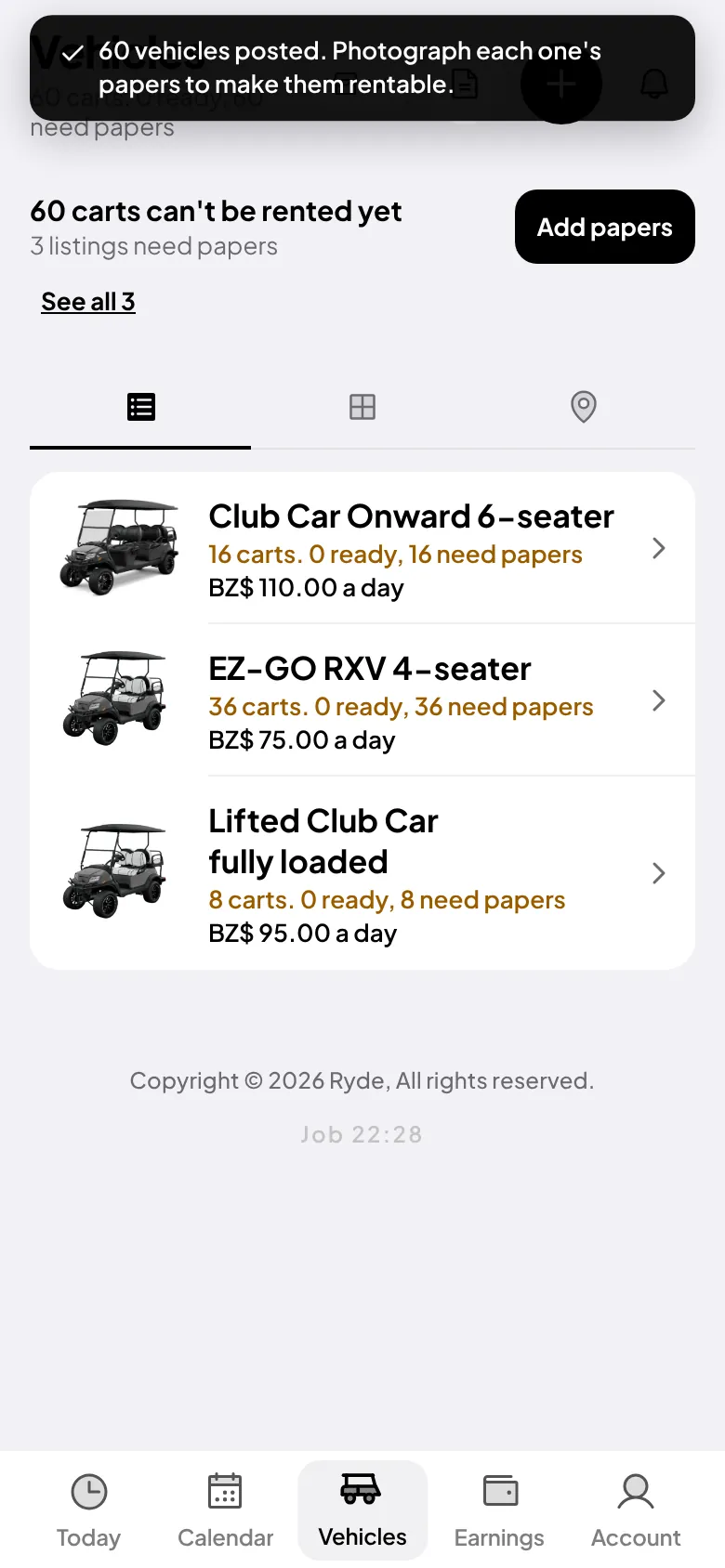
  • Each model is one listing. Renters see it once, with how many are free for their dates.
  • The top says how many carts can't be rented yet. That is only because their papers aren't in. The next steps fix it.
Vehicles after posting: three listings and how many of each can be rented

Give every cart its number and plate

  • Open a listing and tap Type all their numbers and plates at once.
  • Type one cart a line: its number, then its plate. For example 111, GC-1234.
  • A line with only a number adds that cart with no plate yet. A number you already have just gets its plate filled in.
  • Ryde says what will change before you save: how many are new, how many plates it will fill in.

Tip. Your numbers don't have to be in order. 1, 2, 111, 112 and 120 are fine. Nothing is removed, and papers you already sent stay.
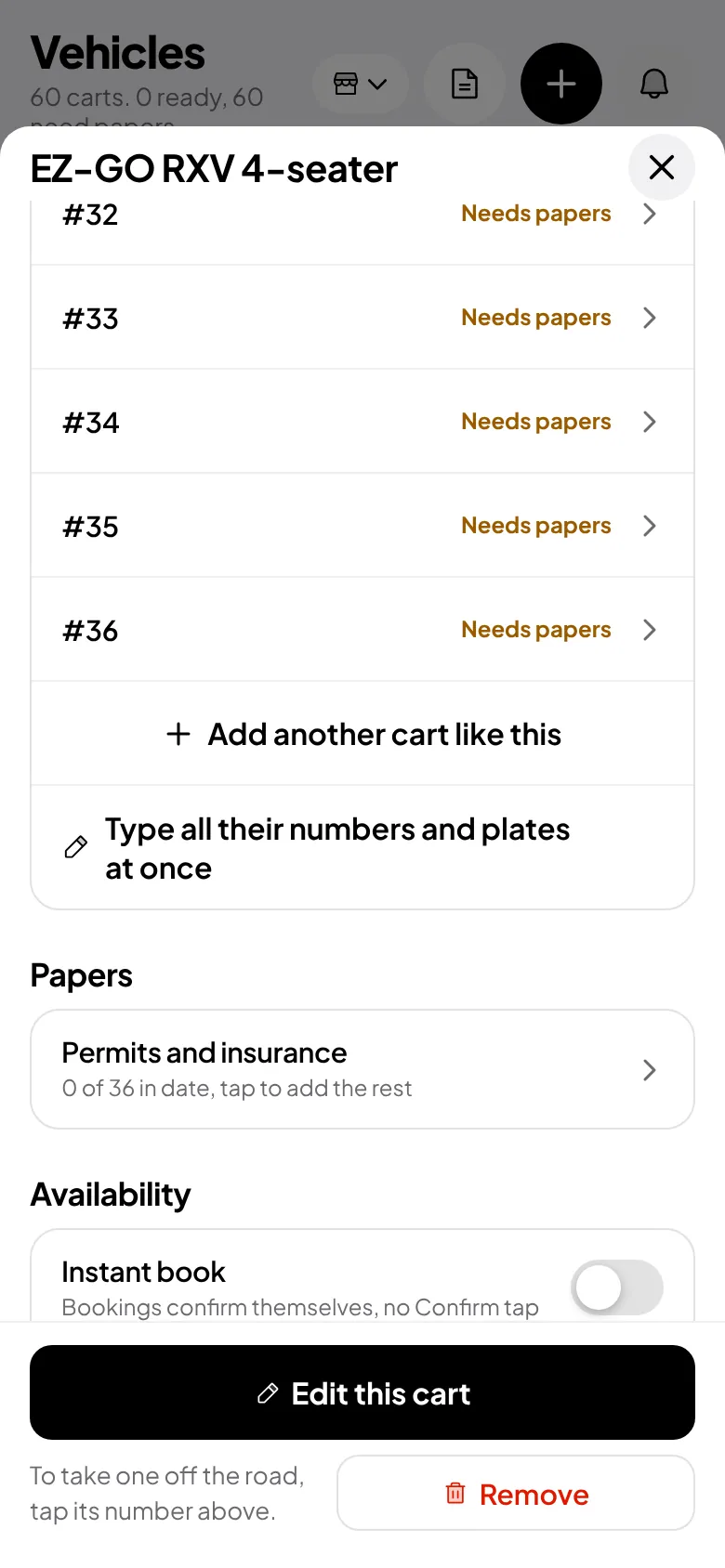
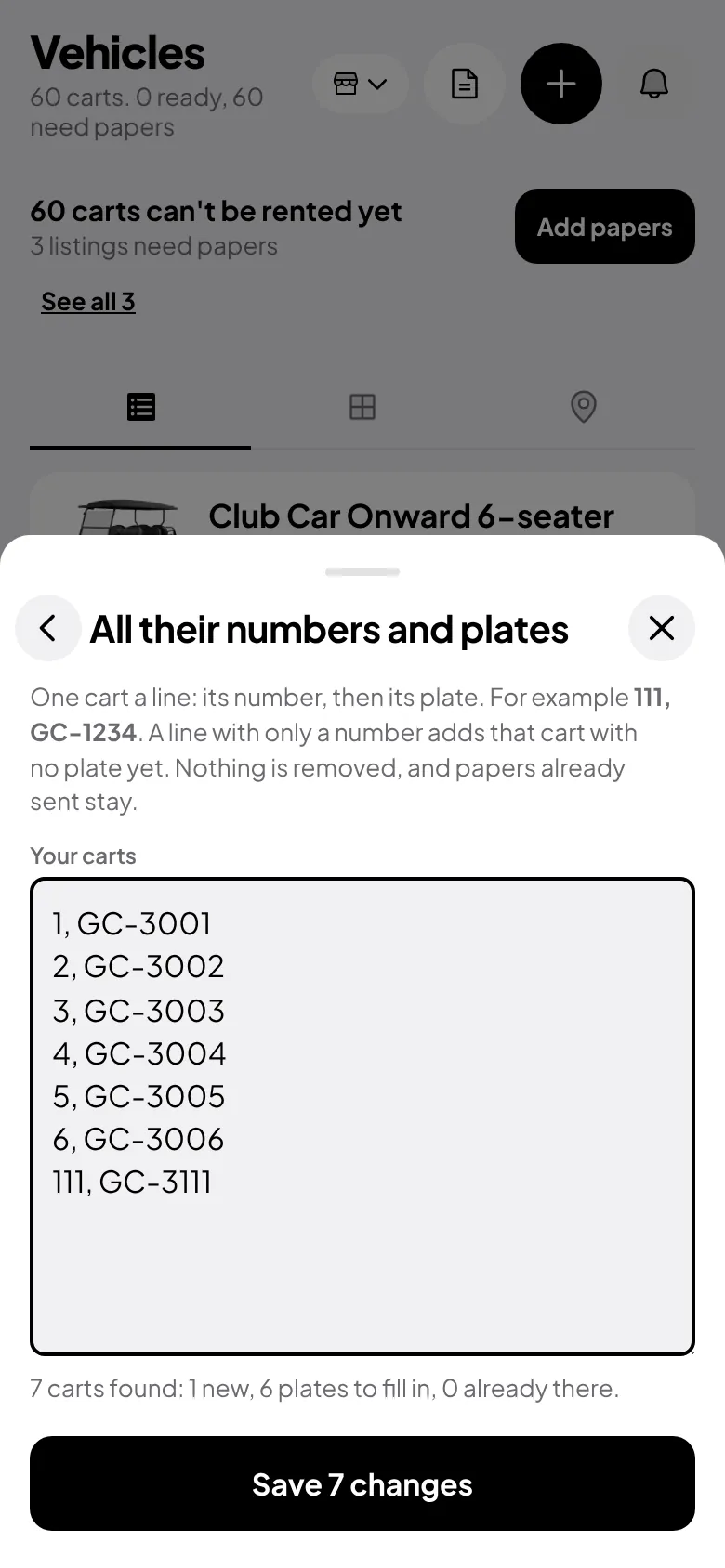
A listing's page, with Type all their numbers and plates at onceAll their numbers and plates: one cart a line, and what will change

Send the insurance once

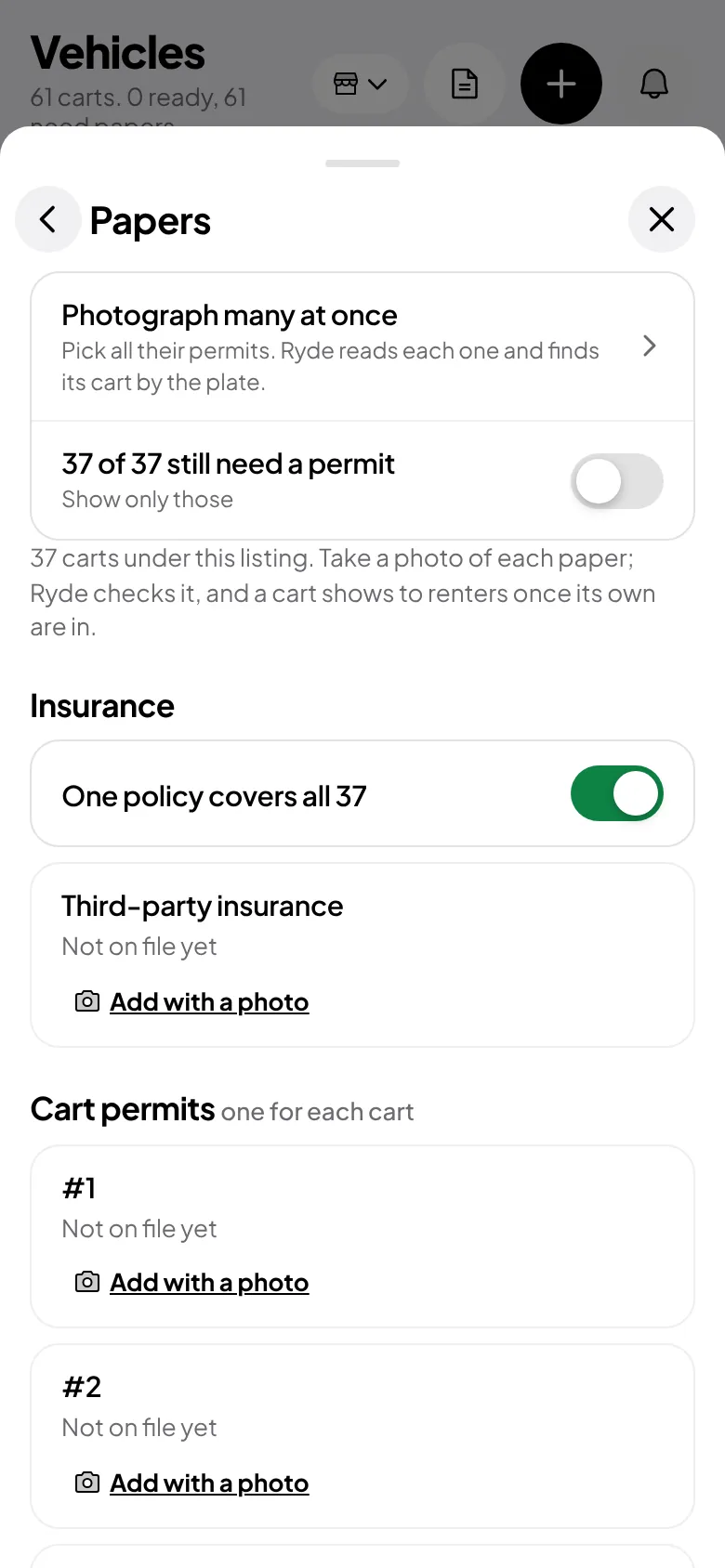
  • On the listing, tap Permits and insurance. It says how many carts still need a permit.
  • Switch on One policy covers all: one photo of your insurance goes to every cart.
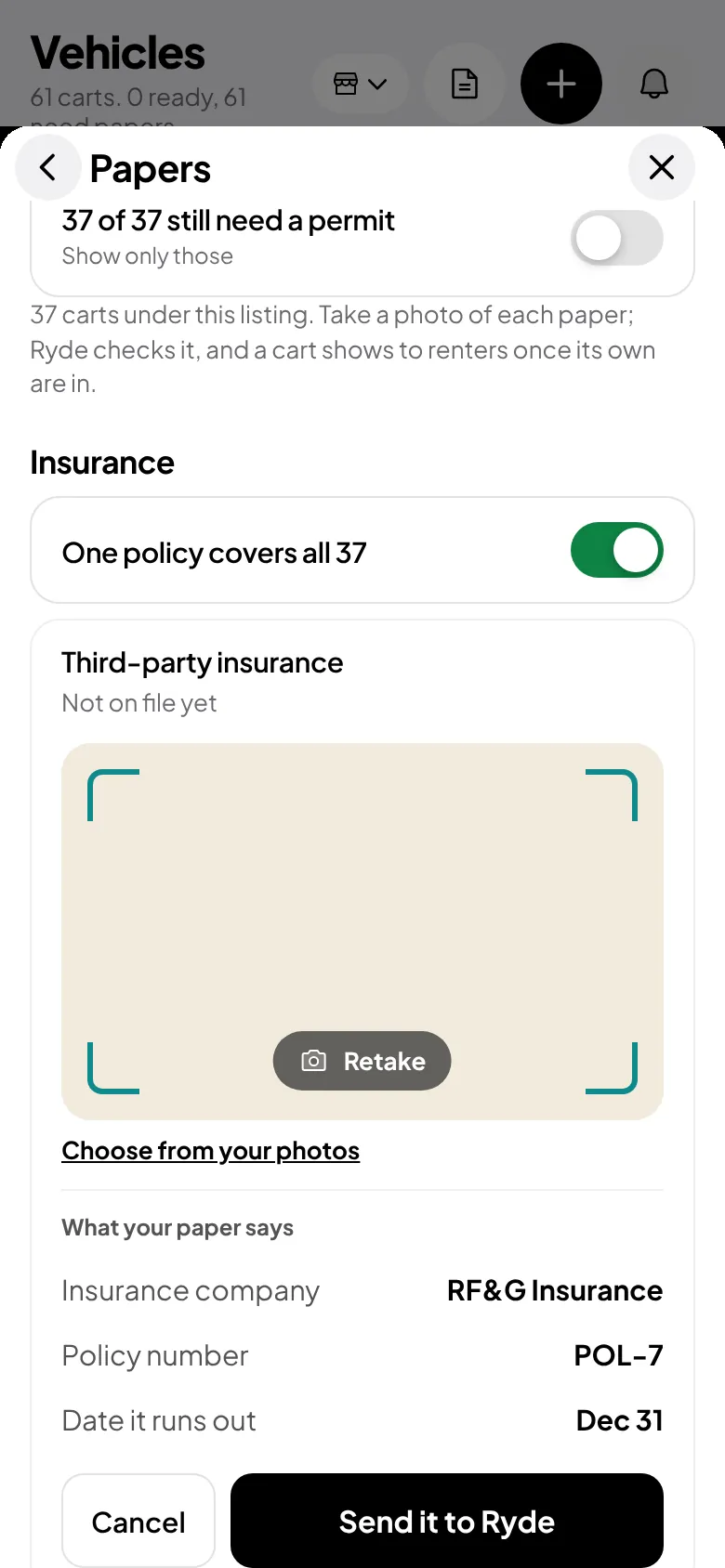
  • Tap Add with a photo under the insurance and take the picture. Ryde reads the company, the policy number and the date.
  • Check what it says, then tap Send it to Ryde.
Papers: photograph many at once, how many still need a permit, one policy for the whole listingThe insurance photo read by Ryde: company, policy number and date

Photograph many permits at once

  • Tap Photograph many at once and pick Vehicle licence.
  • Choose the photos. Pick as many as you like: Ryde reads three at a time.
  • Ryde finds each cart by the plate on the paper. You see the list: which cart each photo is for, and what it says.
  • Wrong match, or one Ryde couldn't read? Choose the cart yourself from the list, or retake that photo. Then tap Send to Ryde.

Tip. Ryde checks the plate on every paper. A photo for another vehicle, or in a name that isn't yours, is caught when Ryde looks at it.
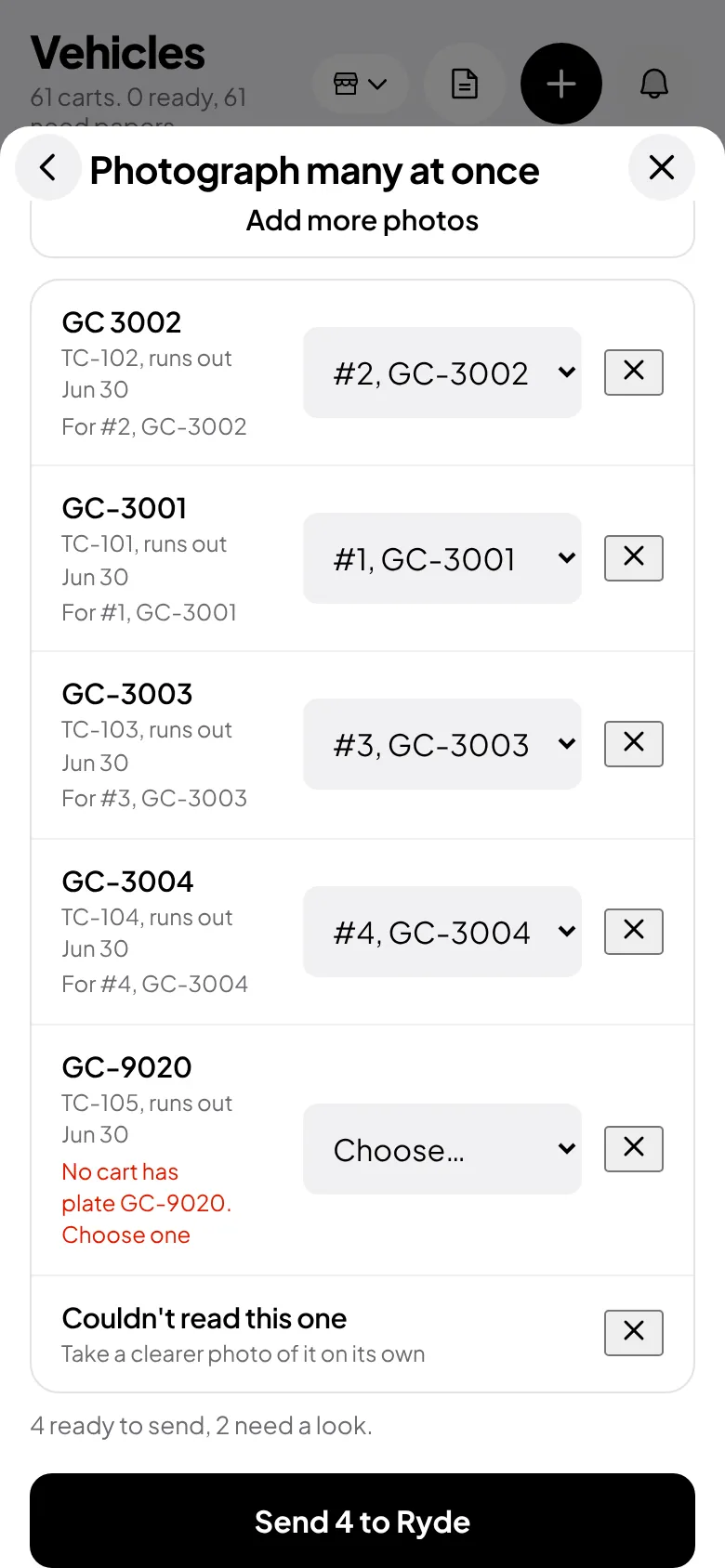
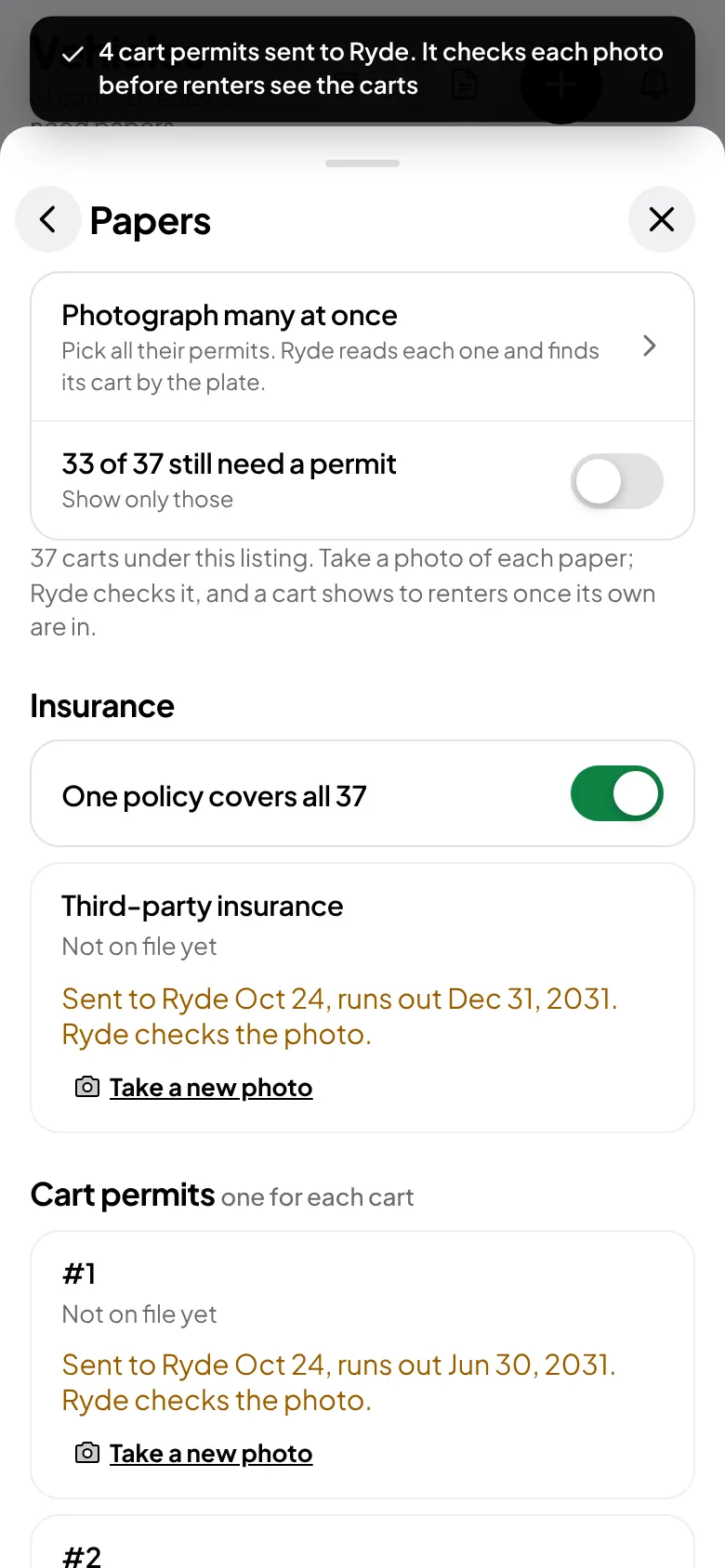
Each permit photo matched to its cart by the plate, ready to sendPapers after sending: the list of carts still missing a permit is shorter

You're live

  • A person at Ryde checks every photo. Until then the cart waits, and an older paper (if you had one) still counts.
  • Each accepted paper makes that cart rentable. When they're all in, the top says All your carts are live to renters.
  • Booking requests arrive on Today. Tap Yes, book it, or No.
  • Show only those on the Papers page lists the carts still missing a permit, so you never hunt through 60 rows.

Tip. A paper runs out? Photograph the new one the same way. The old one counts until Ryde has checked the new photo.
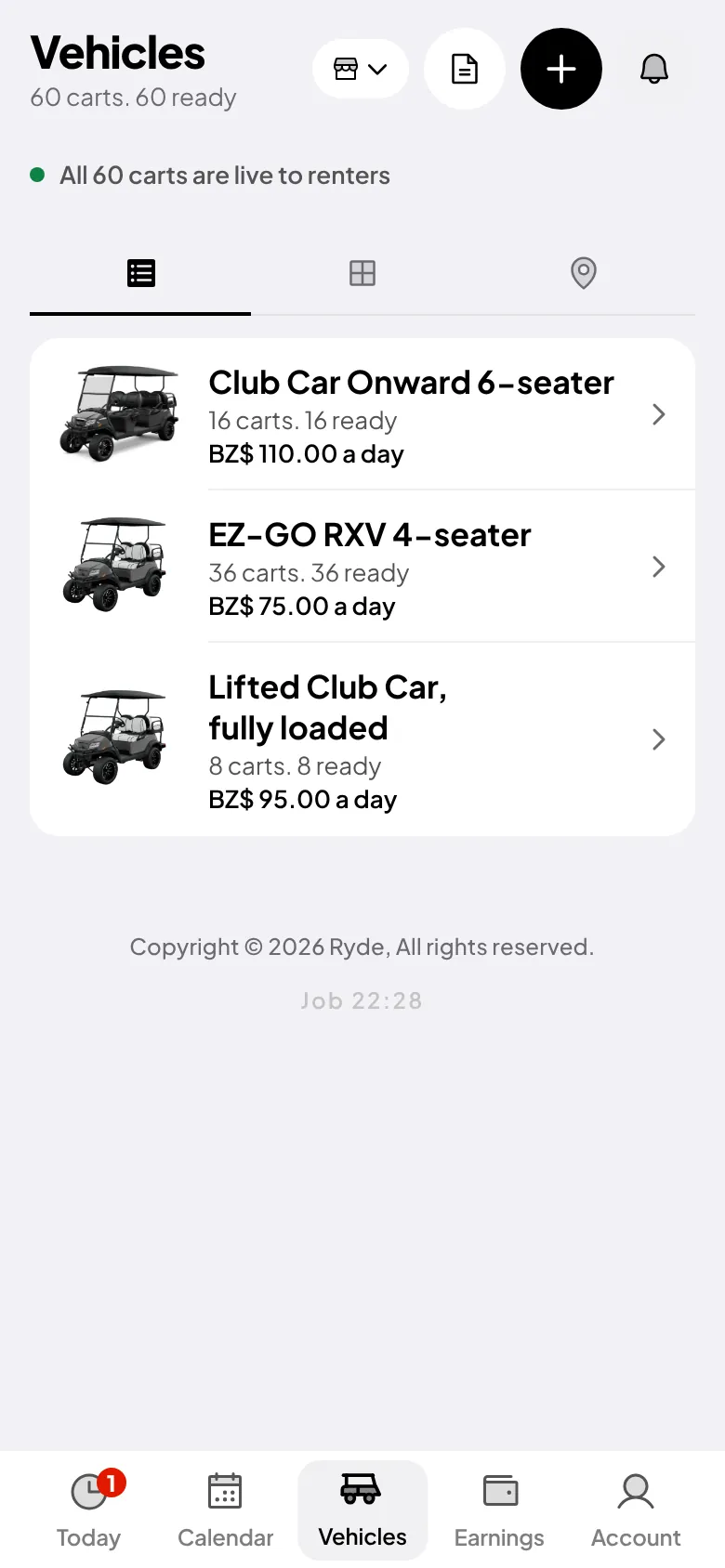
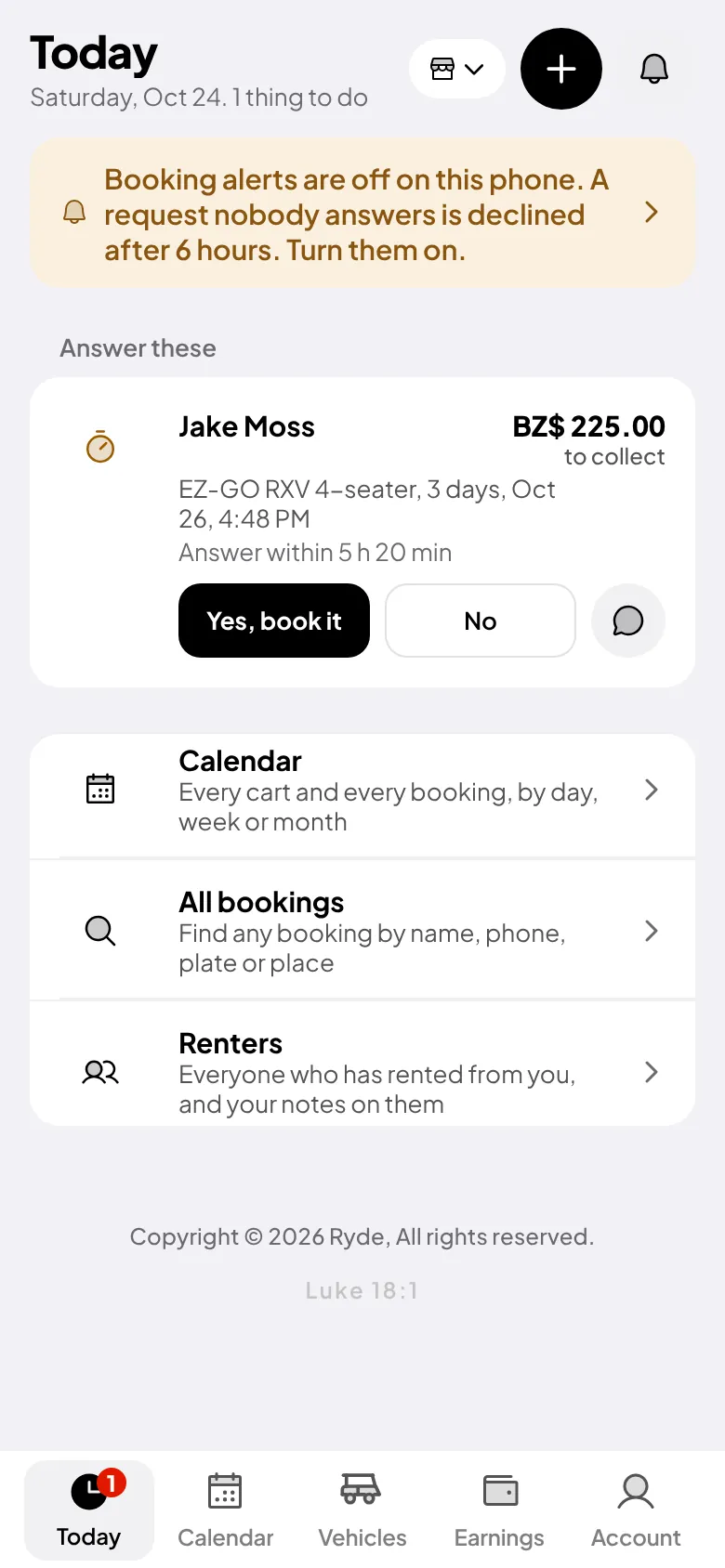
Vehicles once Ryde has checked every photo: all carts are live to rentersToday with the first booking request: Yes, book it or No

Your day, step by step

Start your day on Today

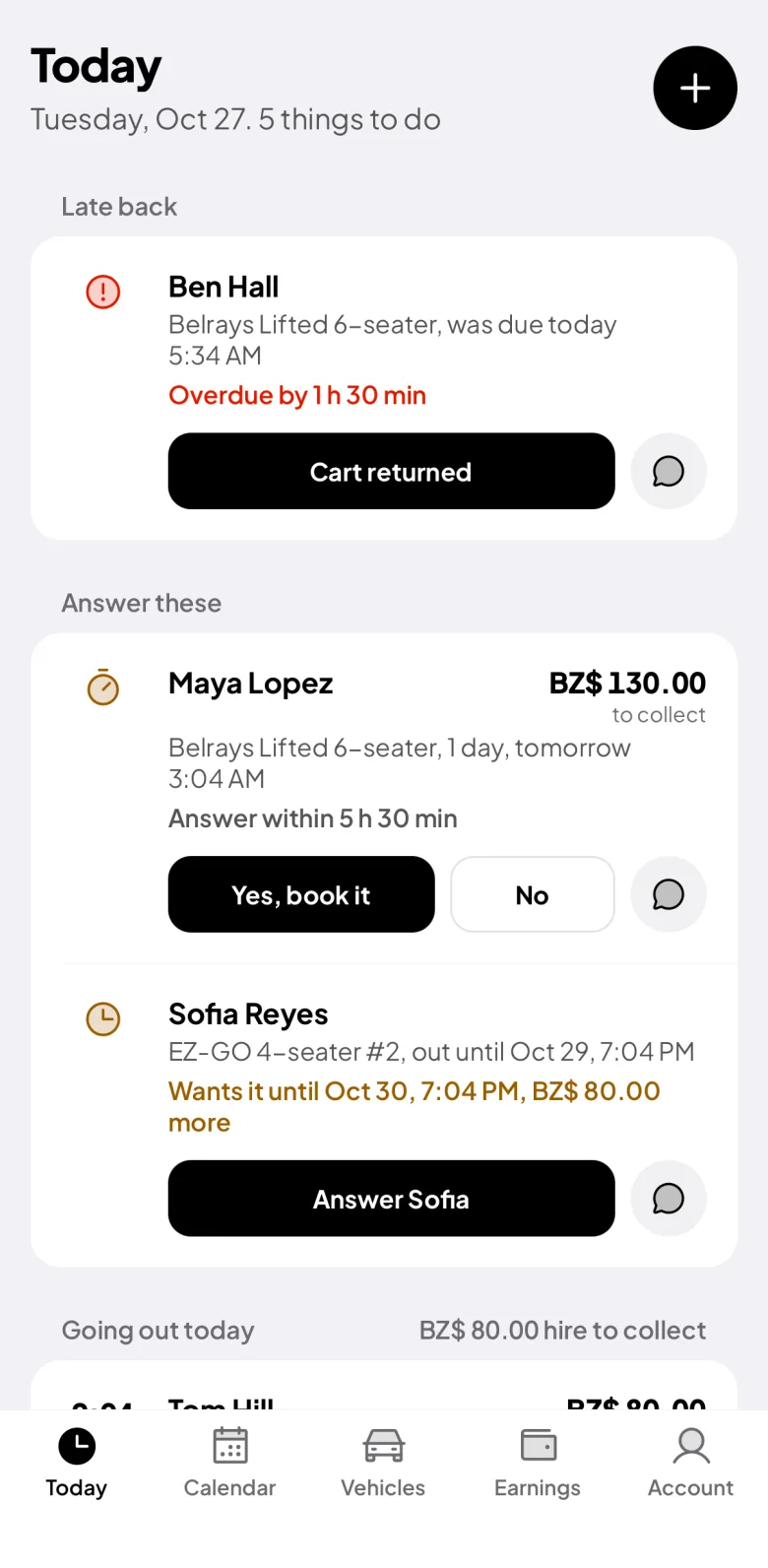
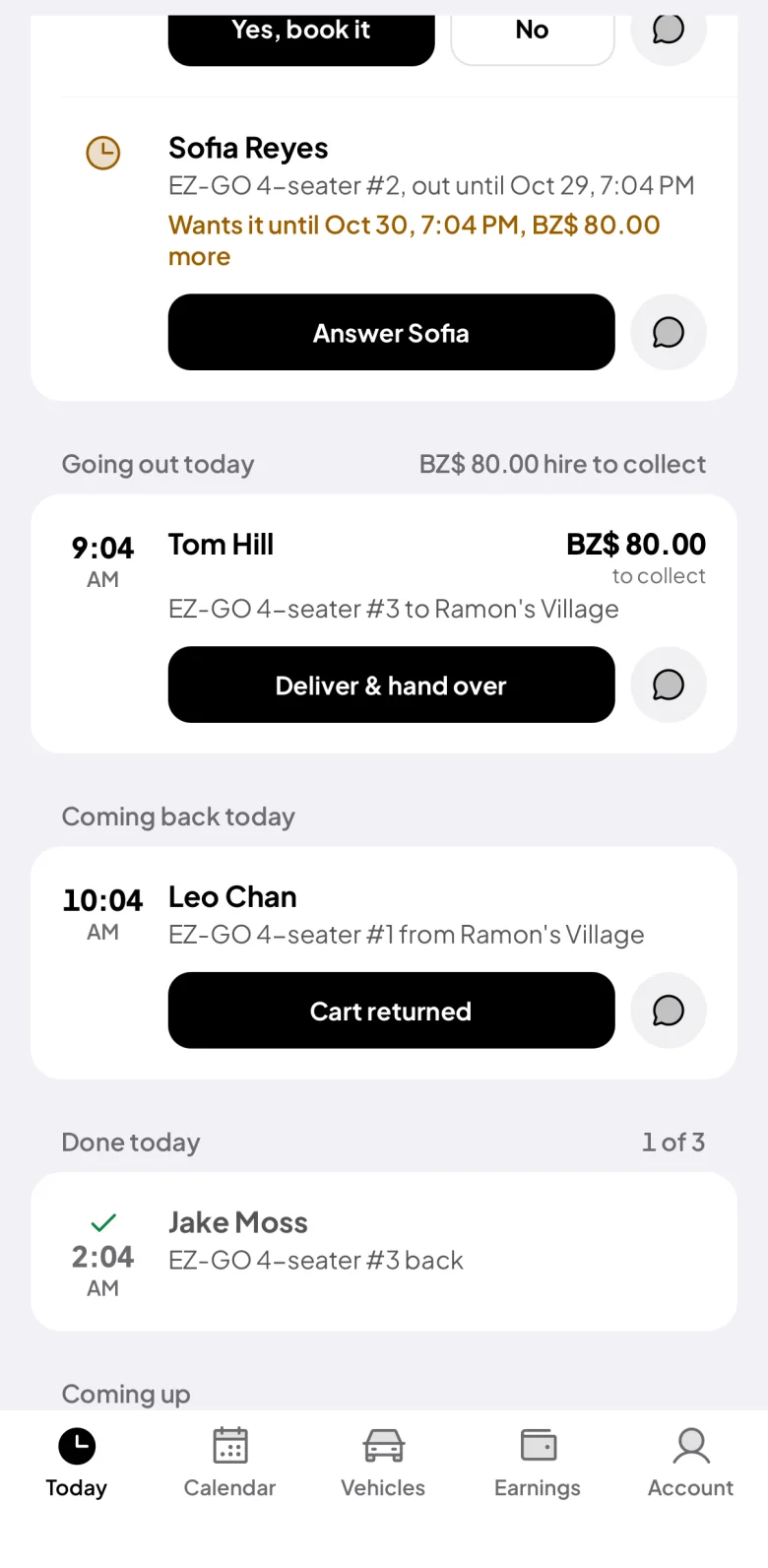
  • Today is your home screen. It is a to-do list, with the urgent first.
  • Late back comes first, so you can message the renter.
  • Then Answer these, Going out today, Coming back today and Done today. Each row has its one button.
Today: a cart that is late back, with a Cart returned button, and the day's to-do list

Answer requests

  • Each request shows the renter, the vehicle, the dates and what to collect.
  • Tap Yes, book it or No. A No asks you why, once.
  • A request nobody answers declines itself after a set time, so renters are never left waiting.

Tip. The round button opens WhatsApp with the message already typed.
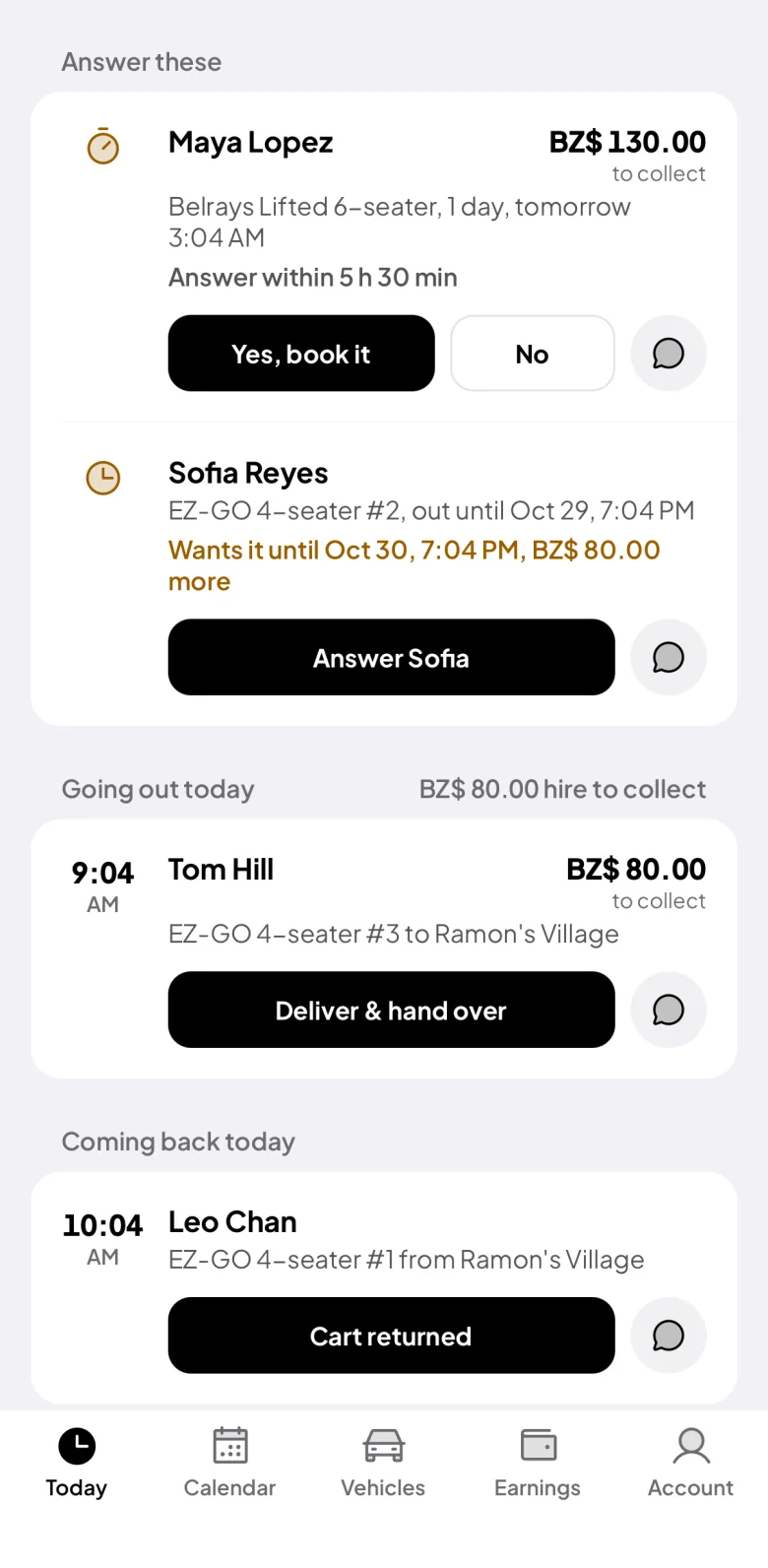
Answer these: booking requests with Yes, book it and No

Hand it over

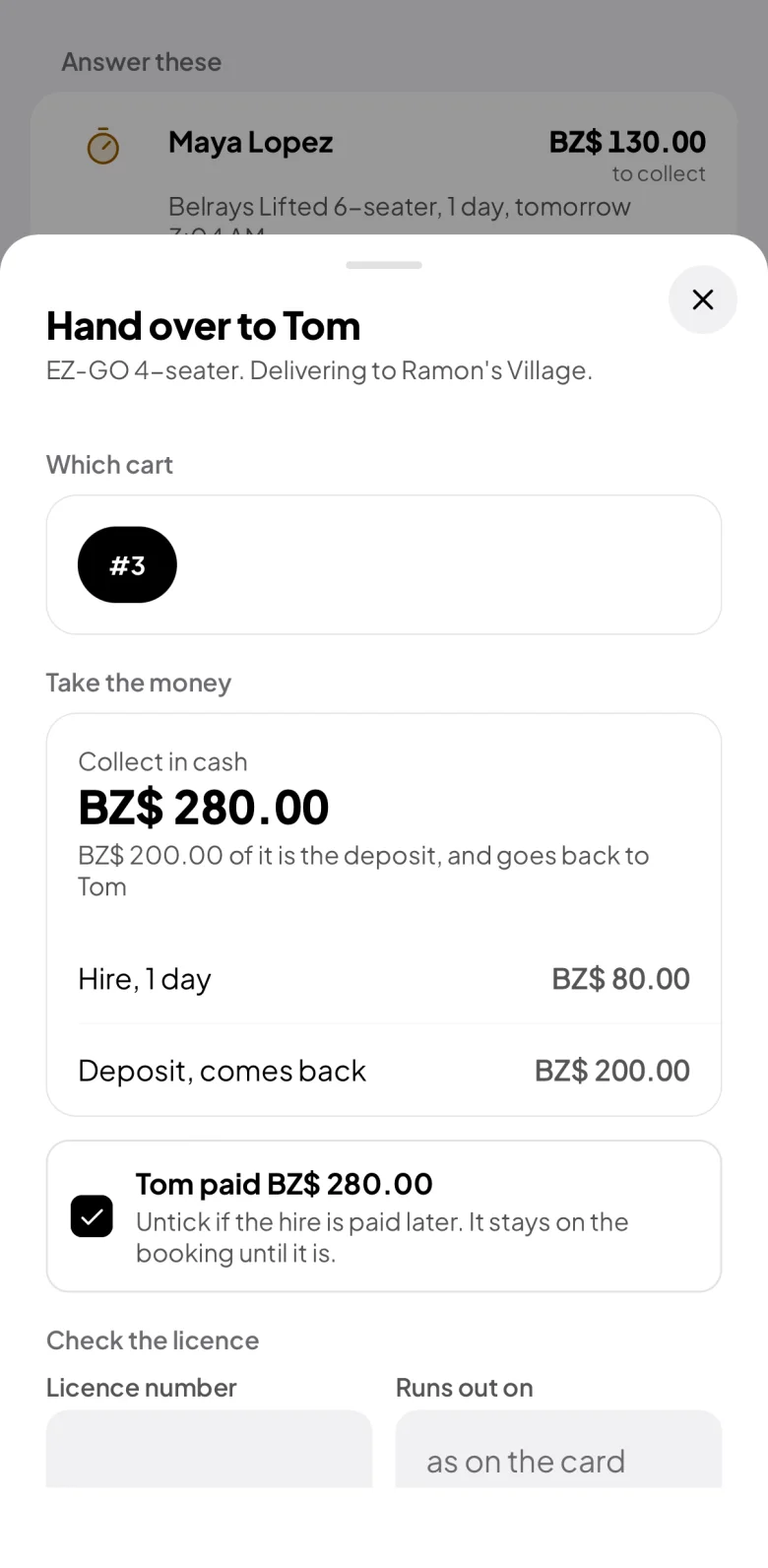
  • Pick which cart goes out (the one free for those dates is first).
  • Take the money: the hire and the cash deposit. Untick it if they pay later and it stays on the booking.
  • Check the licence, and note the fuel and any damage.
  • Tap Hand over. The clock starts now.
Hand over: which cart, the cash to collect, the licence and fuel

When it comes back

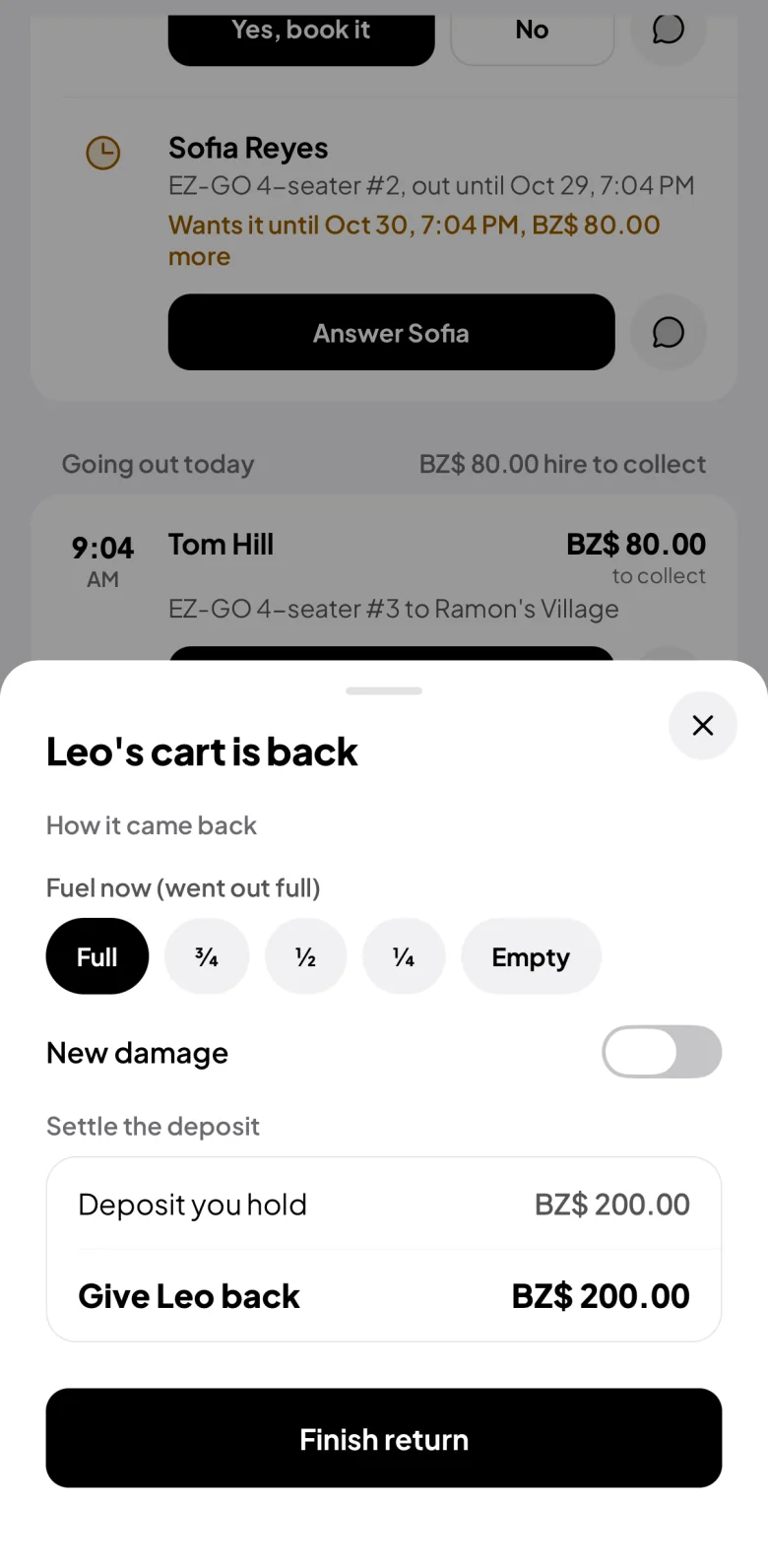
  • Tap Cart returned.
  • Note the fuel and any new damage.
  • Settle the deposit: every line that comes out of it says what it's for. The rest goes back to the renter.
  • Tap Finish return.
Today: Going out today and Coming back today, each with its one buttonThe return: fuel, anything new, the deposit settled line by line

Walk-ins, holds and blocks

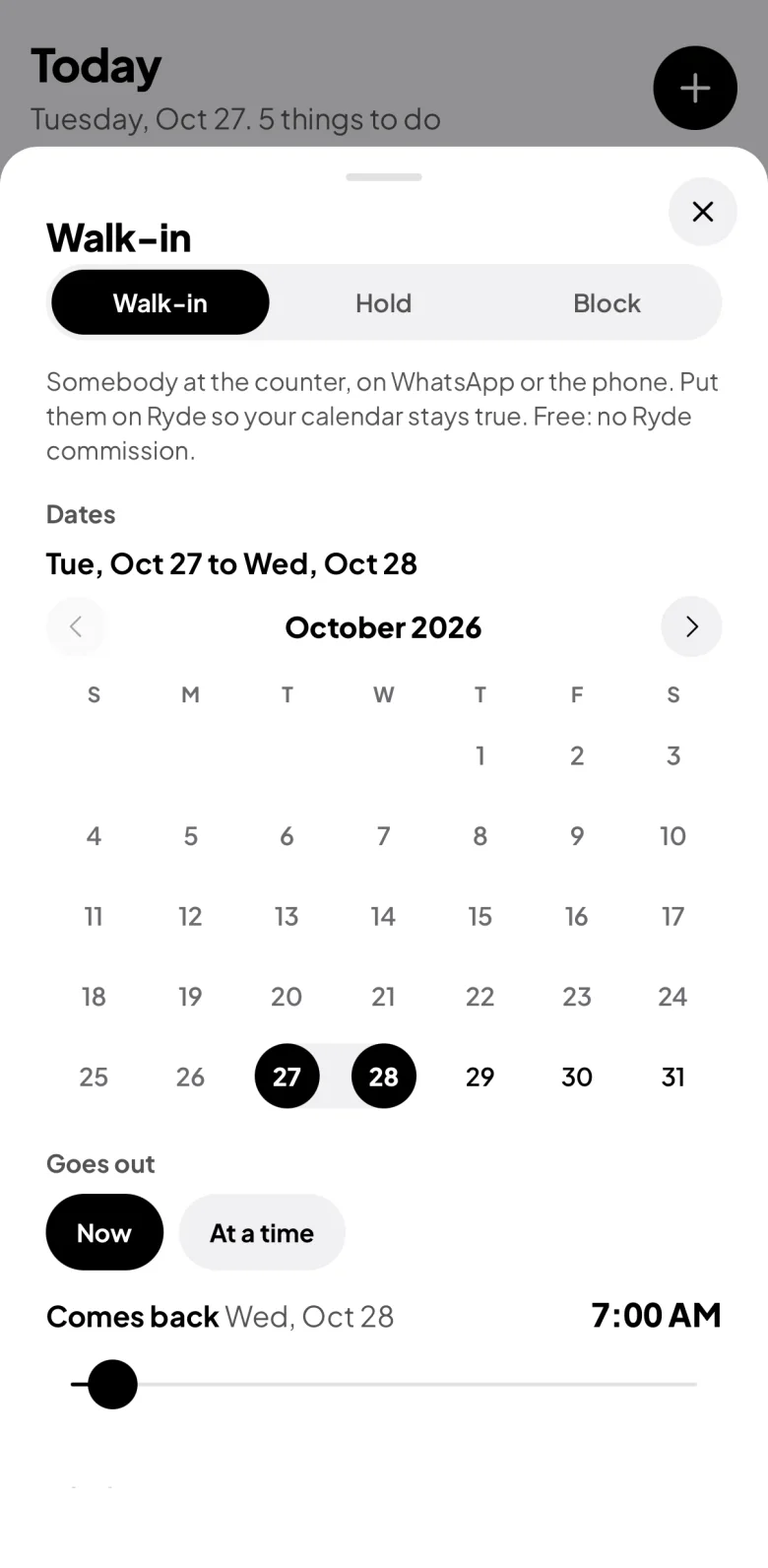
  • Tap + at the top.
  • Walk-in: a customer at your counter. Pick the days on the calendar and the vehicle. Walk-ins are free: Ryde takes nothing.
  • Hold: keep a vehicle for someone until a time. Ryde frees it by itself when the time runs out.
  • Block: service, or you're using it.
The + sheet: Walk-in, Hold or Block, with the days on a calendar

See your days

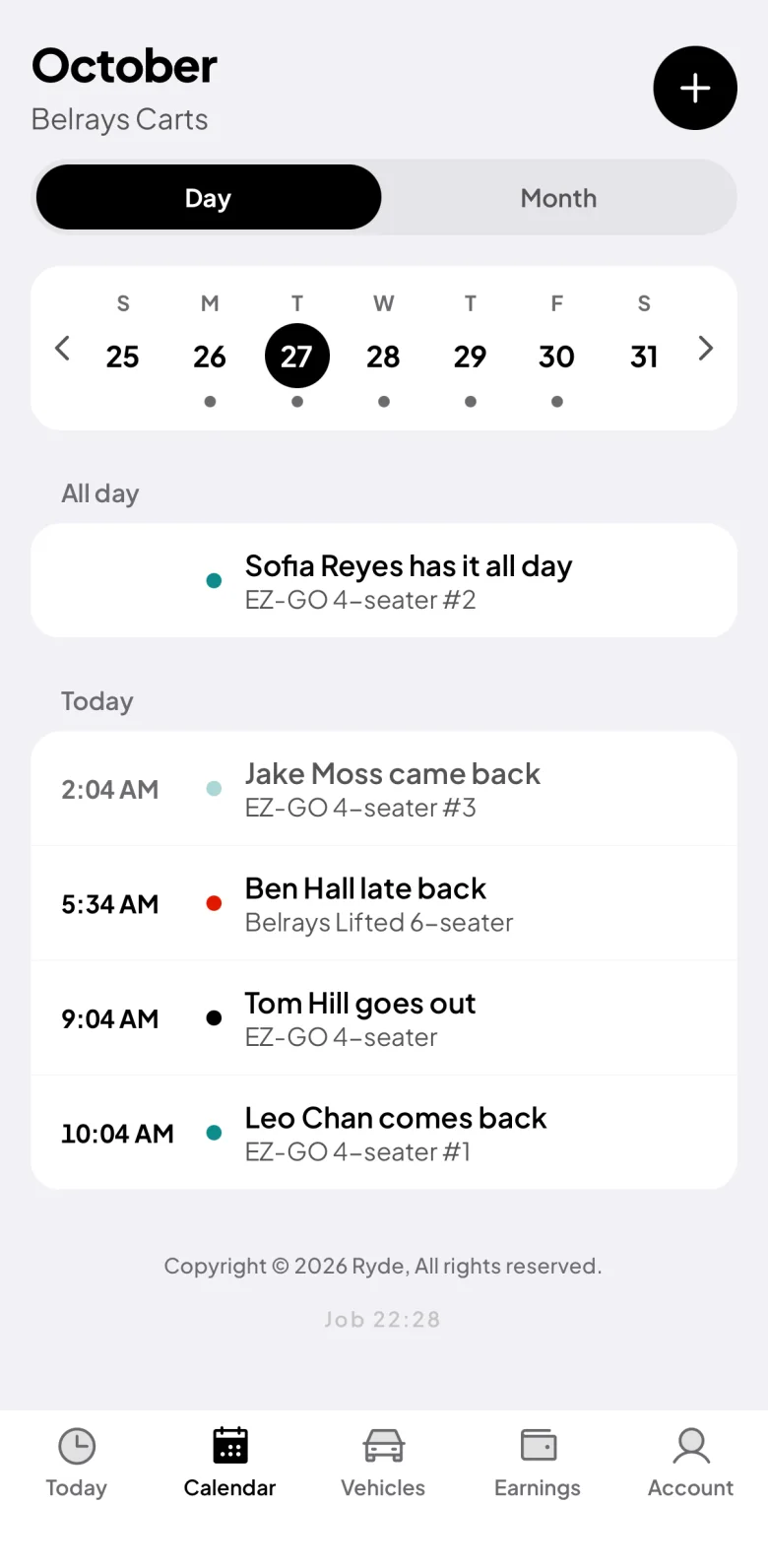
  • Calendar → Day shows every hand-over and return by the hour. The arrows move a week at a time.
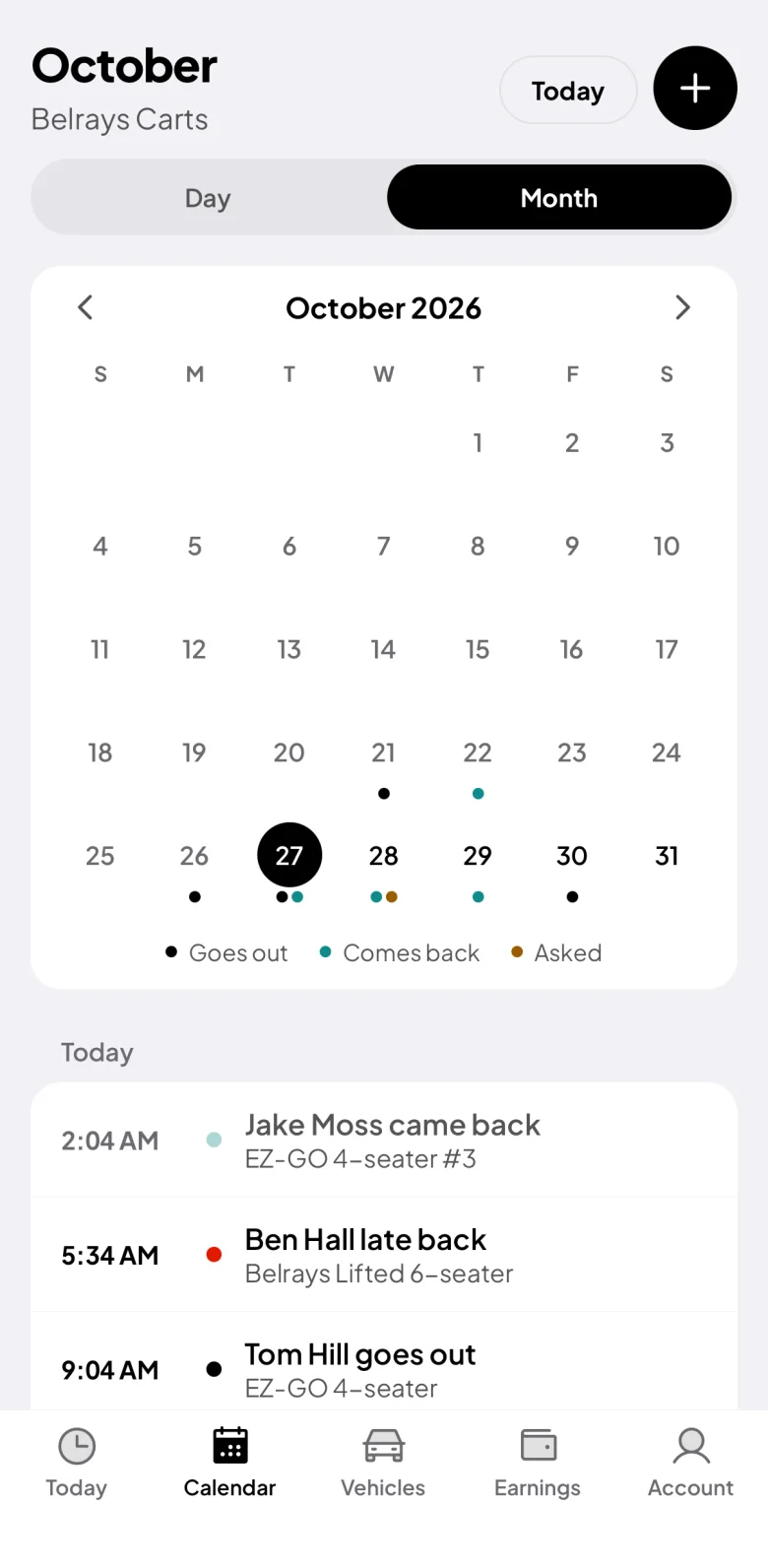
  • Month shows the busy days: a dot for what goes out, what comes back and what is asked.
  • On a laptop, ryde.bz adds a Week view with each vehicle on each day.
Calendar, Day: every hand-over and return by the hourCalendar, Month: a dot for each day something goes out, comes back or is asked

Also in the app

Earnings

What you took in, what's yours, and what you owe Ryde, with a statement for any dates.

Your shop

Where renters collect, your hours, your rules, your extras and your own booking link.

Renters

Everyone who has rented from you, with your own notes.

Why it helps. No double bookings, no lost WhatsApp threads, and new customers from every town. Ryde's 15% is only on bookings made through Ryde: walk-ins and your own booking link are free.

Ryde Driver app

Drive your taxi

Ryde Driver sends you riders near you and guides you to them. You keep every dollar of the fare.

Get started

  • Open Ryde Driver and tap Apply to drive, or go to ryde.bz/drive. Six short steps; you can stop and finish later.
  • Photograph your papers: the licence sticker on your windscreen, your driver's licence (class C1, C or ALL), the certificate of title and the insurance sticker that covers passengers. In Cayo, your taxi trade licence too.
  • A person at Ryde checks every photo and approves you. You get a notification.

Your first trip, step by step

Go online

  • Open Drive. The map is yours, and today's earnings are at the top.
  • Tap Go online. Riders near you can now find you.

Tip. A paper that runs out takes you offline. Renew it in Your taxi with a new photo before then.
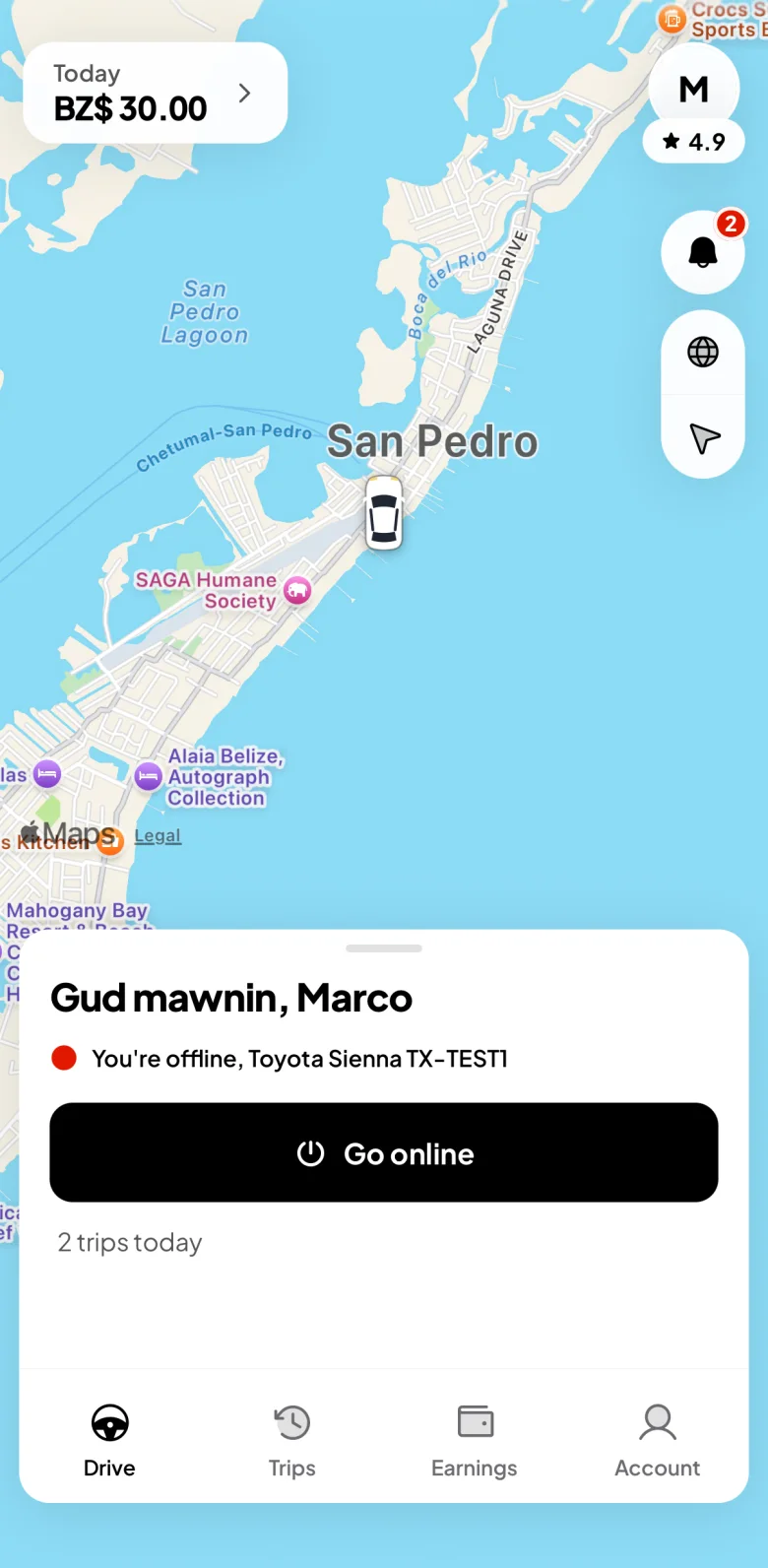
Ryde Driver, offline: Go online, and today's earnings at the top

A request comes in

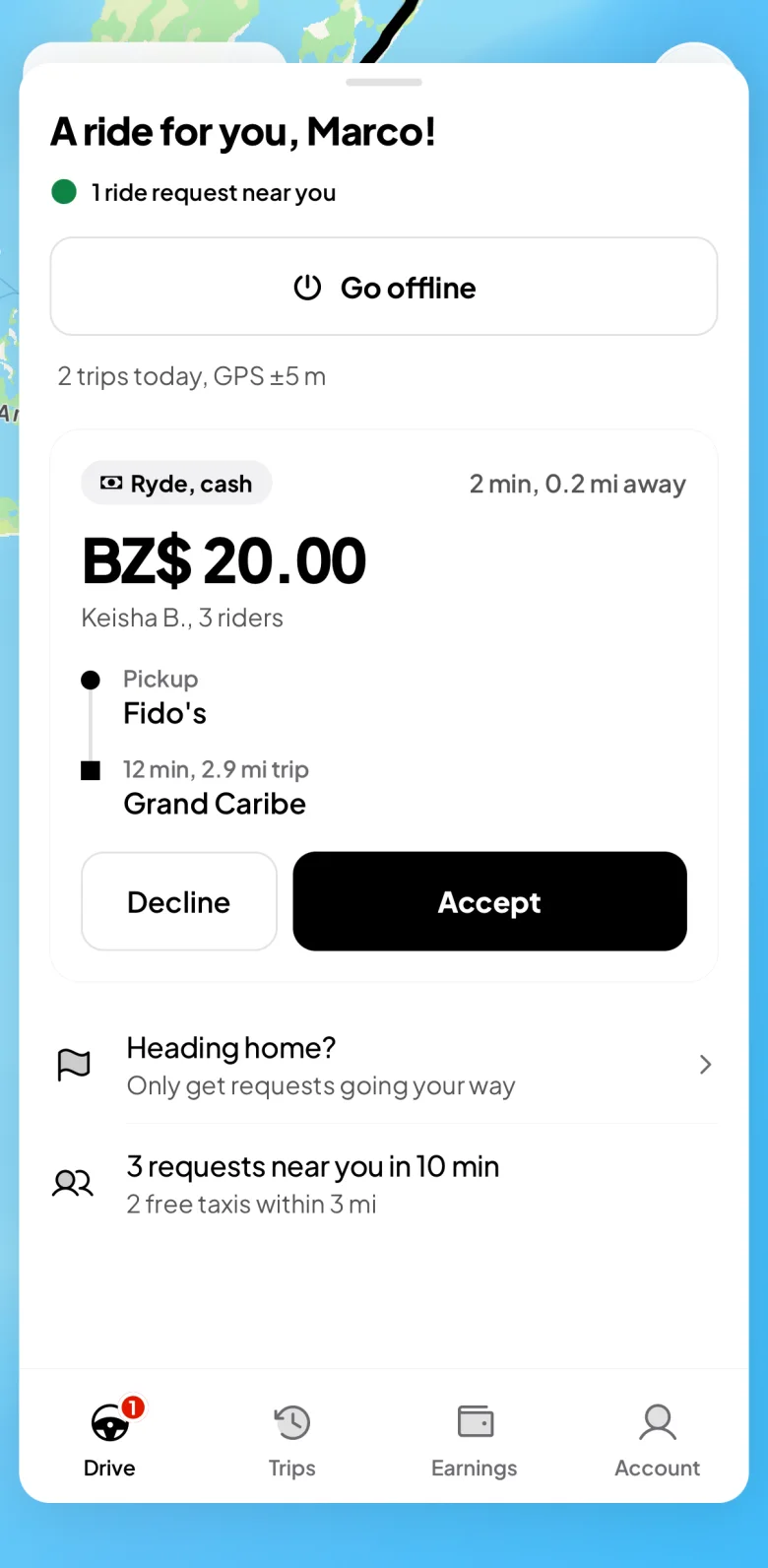
  • You hear a chime. The request shows the fare, how many riders, the pickup and the drop-off.
  • Tap Accept, or Decline. There's no penalty.
  • Only requests that fit your taxi and your reach are shown, one driver at a time.
A request: Ryde, cash, the fare, minutes away, the pickup and the drop-off, Decline and Accept

Drive to the rider

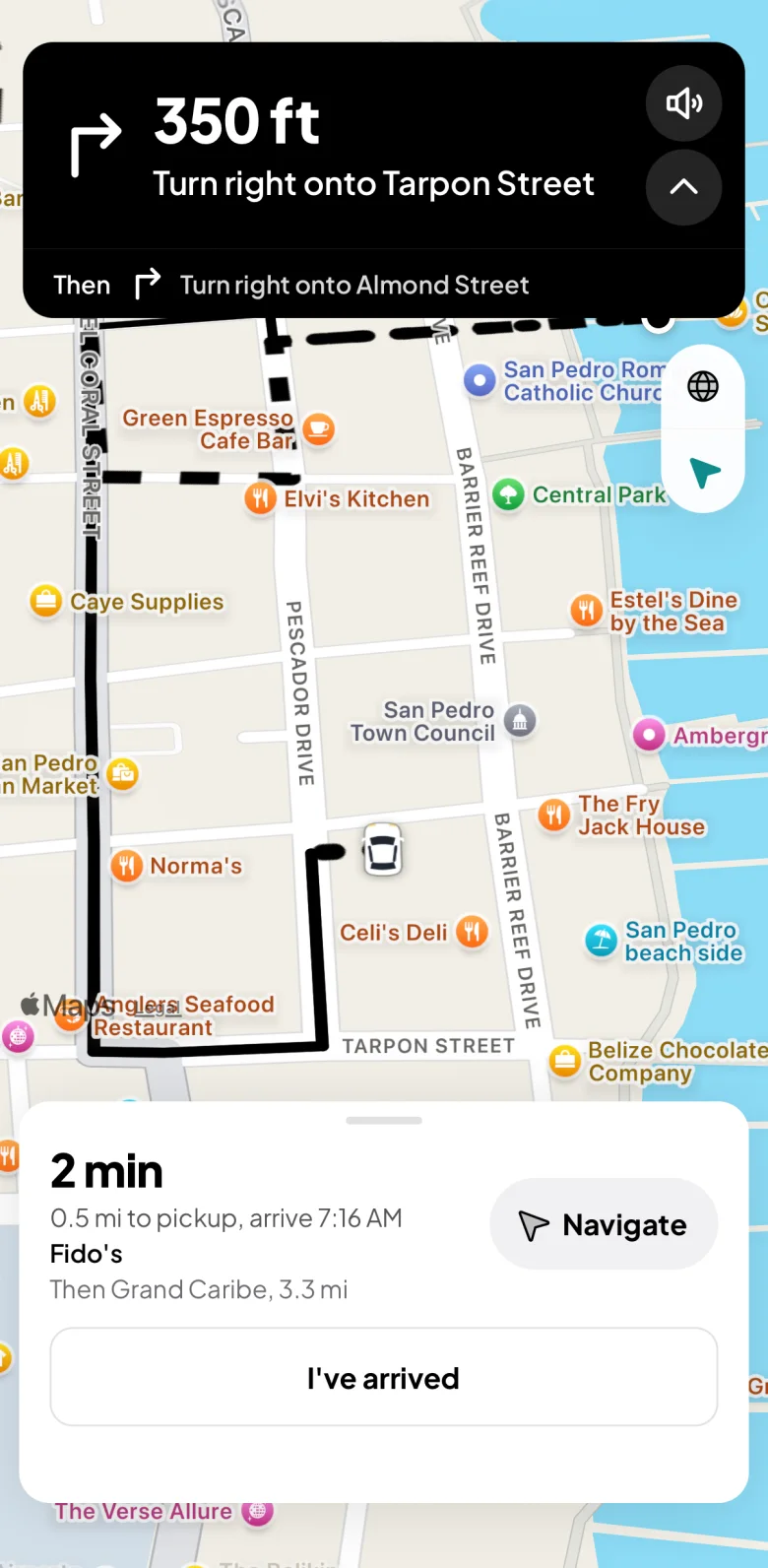
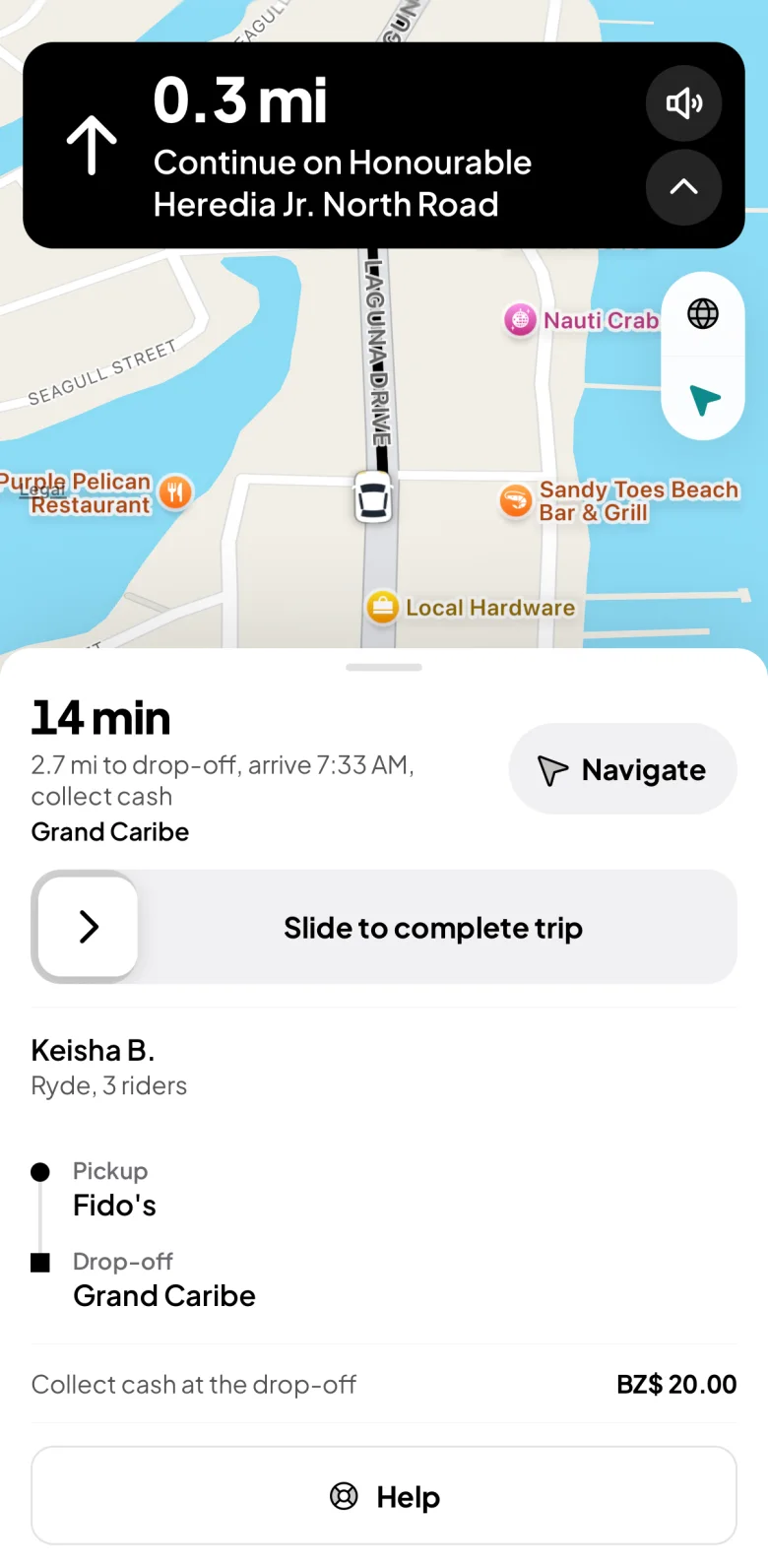
  • The banner on top gives the next turn, with the distance and a voice.
  • Prefer Google Maps or Waze? Tap Navigate.
  • Call or WhatsApp the rider from the panel.
On the way to the pickup, with the turn-by-turn banner on the map

At the pickup

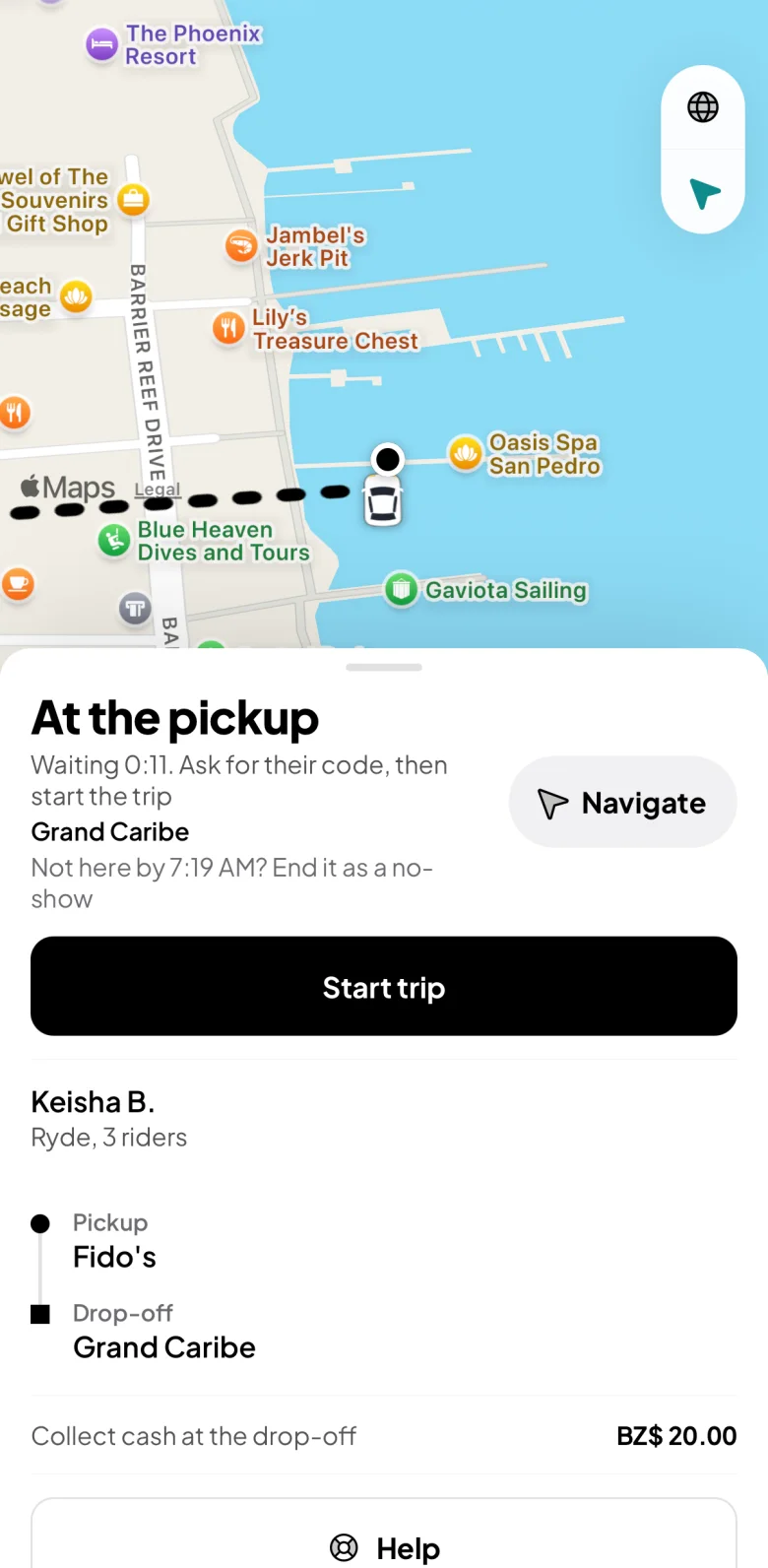
  • Tap I've arrived.
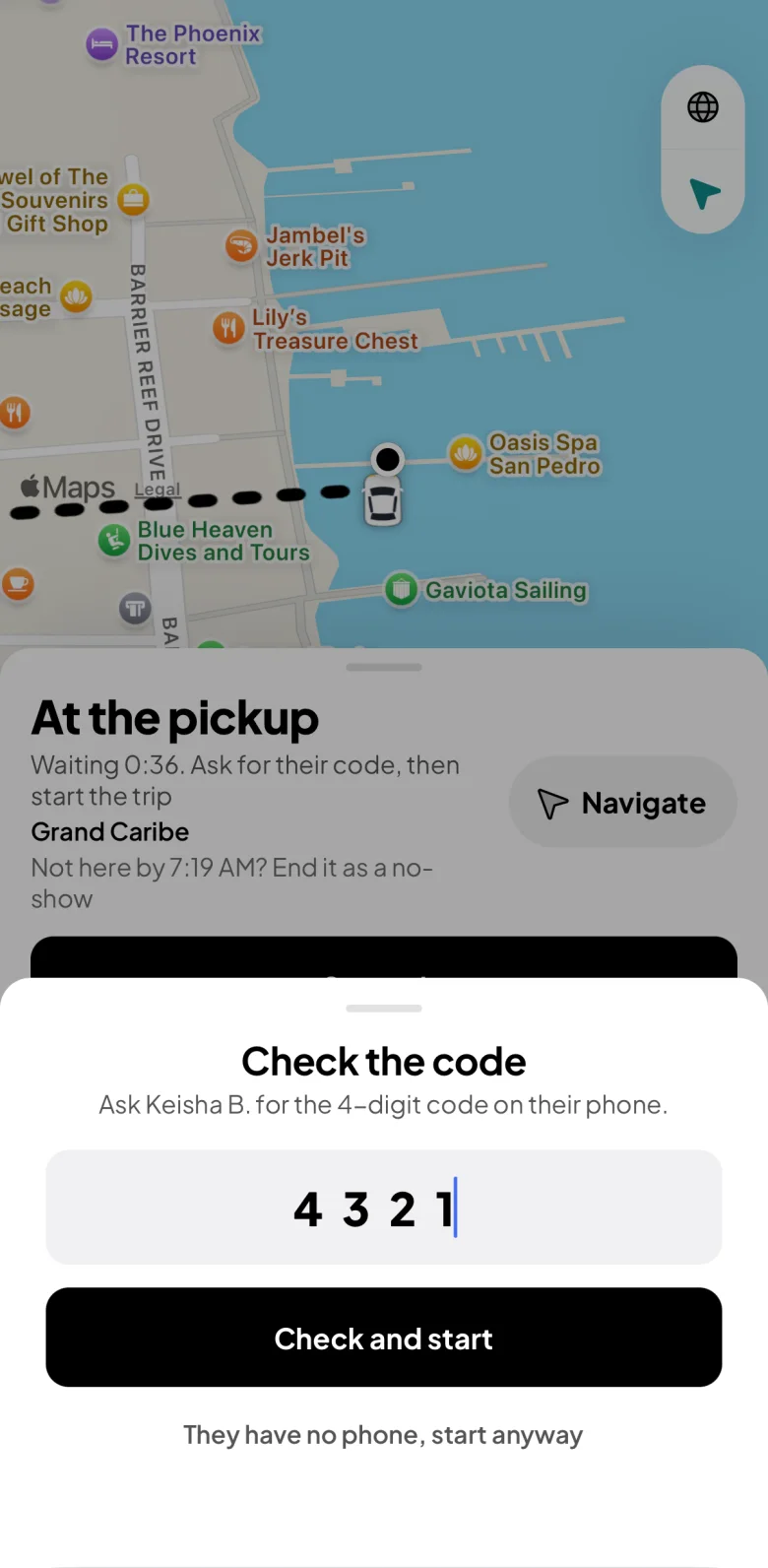
  • Ask the rider for their 4-digit code and type it in. That's how you know it's the right person.
  • Tap Start trip.
  • Rider not coming? After 5 minutes you can end it as a no-show. No fee.
At the pickup: Start trip, waiting time and the rider's detailsCheck the code: type the rider's 4-digit code

On the trip

  • The banner guides you to the drop-off.
  • Stops on the way? Tap Done at stop 1 at each one.
The trip under way: minutes and miles to the drop-off, and the Complete trip slider

Complete the trip

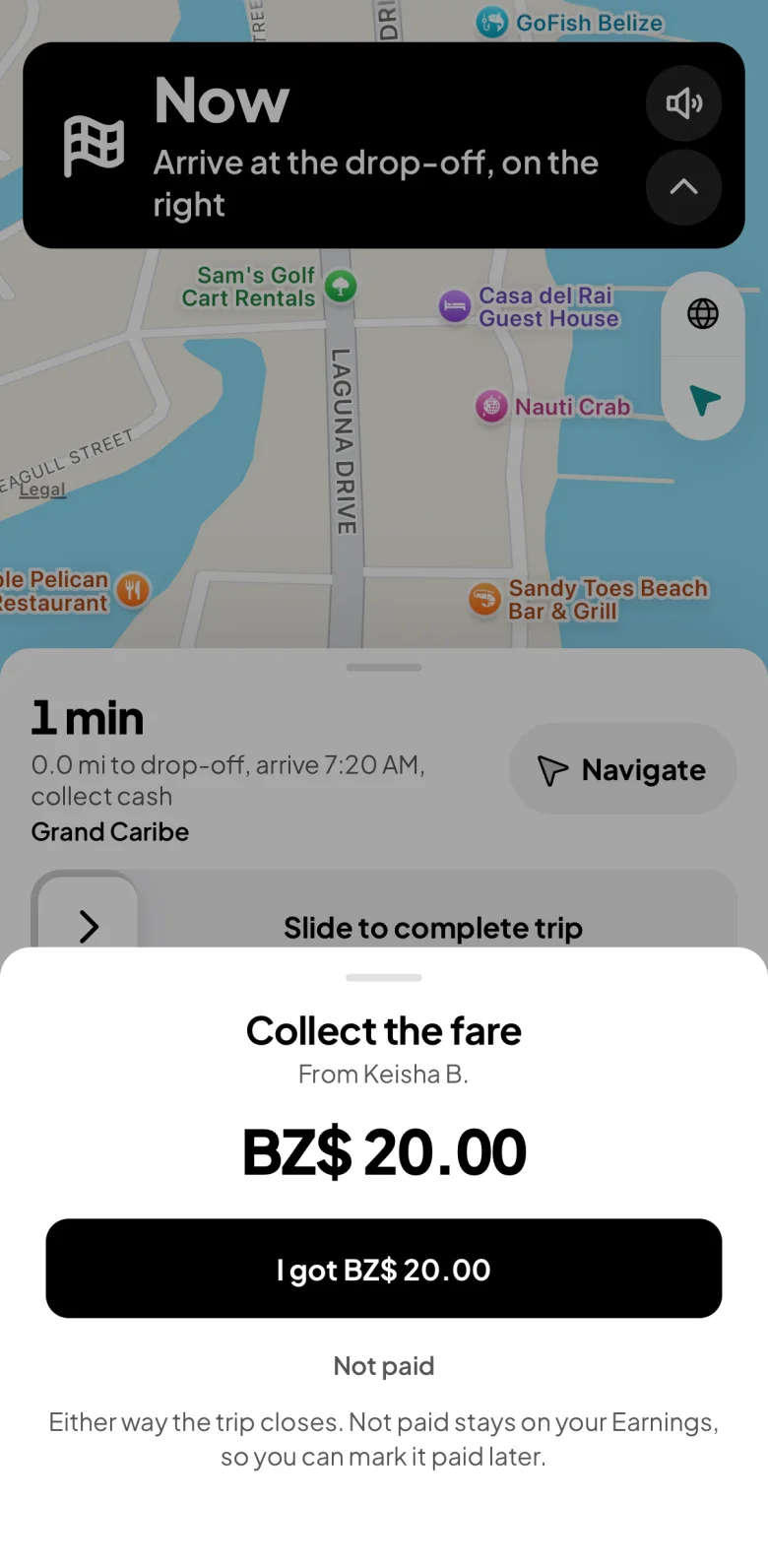
  • At the drop-off, slide to complete.
  • Collect the cash. The whole fare is yours.
  • The rider didn't pay? Mark it not paid, and it stays on your Earnings so you can mark it paid later.
Collect the fare: I got the fare in cash, or Not paid

See what you earned

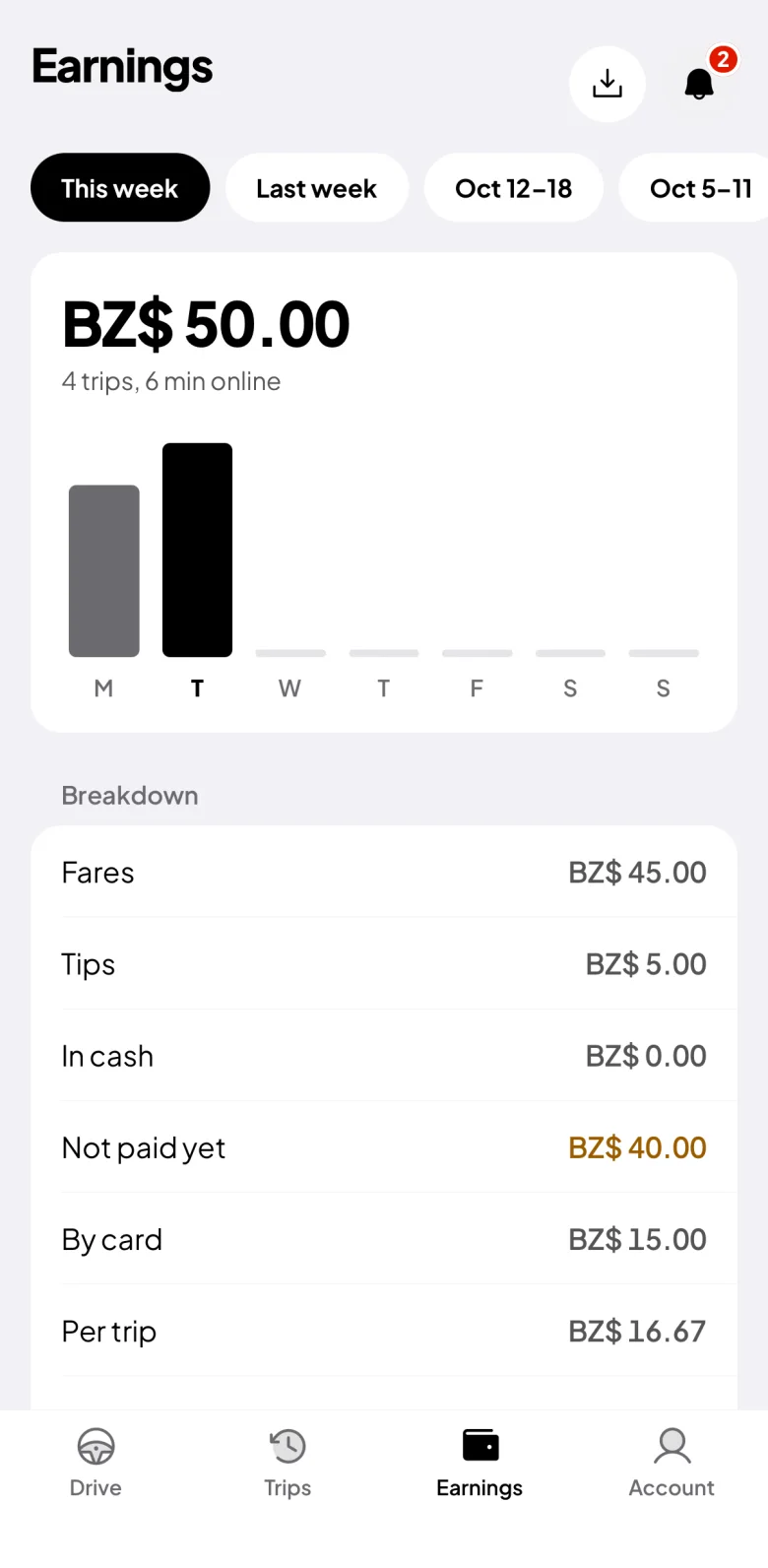
  • Earnings shows the week, each day, your trips and your time online.
  • Set a weekly goal, or pick Last week or any week before it at the top.
  • Need a statement? Tap the download icon and pick the dates.
Earnings: the week, the days, and key stats

Also in the app

Heading home

Set where you're going and only get rides that way.

Your taxi

Renew a paper with a new photo before it runs out.

Getting paid

Cash fares are yours on the spot. Card fares are paid to you every Monday, nothing taken off.

Why it helps. No commission, no fees, riders come to you, and nobody argues the price.

Who pays whom

A taxi rideYou pay the driver. The whole fare and any tip are theirs: Ryde takes no fee from drivers.
A rental through RydeYou pay the shop at hand-over. The shop pays Ryde 15% of the hire afterwards.
A walk-in, or a shop's own linkYou pay the shop. Ryde takes nothing.
The depositPaid to the shop at hand-over, in cash. You get it back, or the shop keeps it line by line for damage, fuel or a late return.

Top questions

Is Ryde open yet?

Ryde opens to everyone on January 1, 2027. Drivers and shops can join now, so they are ready on day one.

What if I have no signal?

Ryde opens anyway and sends what you tapped once you're back. Drivers: download Belize in Google Maps for directions with no signal.

Why can't I book a taxi to Caye Caulker?

A taxi can't cross water. Ryde offers you a ride to the water taxi instead.

How do I know it's my taxi?

The app shows the plate and the driver's name, and you give the driver your 4-digit code. Never get in without it.

Can I make the text bigger?

Yes. Account → Appearance → Text size.

Where do I get help?

WhatsApp Ryde on +501 613 5737, 8 am to 8 pm every day, or Account → Report a problem.